
ORIA Workbench
How to Use the ORIA Workbench
The ORIA Workbench is accessible from the AI Orchestrator screen. It automates the work of creating and editing tables and knowledge nodes inside your repository, then lets you validate and query the resulting structure with Oria — short for Ontology Reasoning Interactive Agent.
ORIA Workbench is designed as a full tool for technical end users, not just admin staff. You need working knowledge of a database query language (for example, SQL) and basic data-modeling concepts to author tables and knowledge nodes, validate changes, and troubleshoot results.
Nothing is applied without your approval. Workbench can write to your repository structure, but every change is presented as a plan you review and approve first. Authoring tools are also off by default in a new session — you switch them on deliberately.
Workbench or Reasoner?
| ORIA Workbench | ORIA Reasoner | |
|---|---|---|
| Purpose | Author and modify structure | Ask questions over existing structure |
| Access from | AI Orchestrator → Side Menu | ARPIA Home → My Tools |
| Audience | Technical users (SQL, data modeling) | Business users |
| Repository | Required — you pick one per session | Not applicable |
| Writes structure? | Yes, after you approve a plan | No |
| Institutional Memory | Yes, on by default | Yes, on by default |
| Session Tools tabs | 4 — no Connected Apps | 5 — includes Connected Apps |
If you only need to ask questions over existing knowledge nodes without changing them, use the ORIA Reasoner instead.
Overview
| Tool name | ORIA Workbench |
| Assistant | Oria (Ontology Reasoning Interactive Agent) |
| Intended users | Technical end users — data engineers, analysts, and developers comfortable with SQL and data modeling |
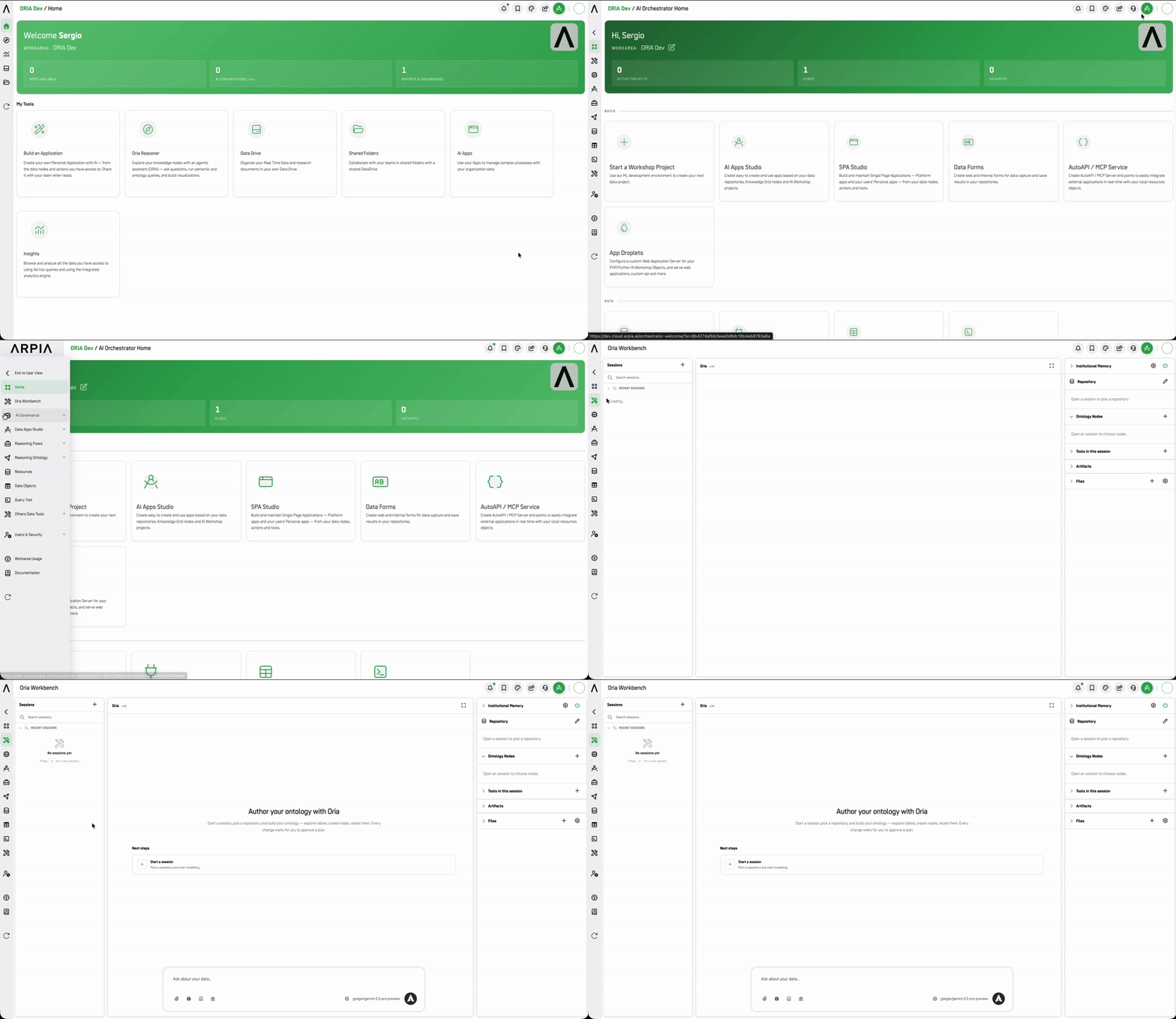
| Access from | ARPIA Home → AI Orchestrator → Side Menu (left) → ORIA Workbench |
| Core capability | Build, edit, and ask questions about the tables and knowledge nodes in your repository to construct a knowledge ontology — and build dashboards or other visualizations over it |
| Work unit | A session — scoped to a repository, with its own nodes, tools, memory settings, files, and artifacts |
| Writes to your repository? | Yes — through an approved plan, with authoring tools enabled, in a writable repository |
Use Cases
ORIA Workbench is built for technically-driven knowledge engineering: build, edit, and query the tables and knowledge nodes in your repository in order to construct and maintain a knowledge ontology. It is most useful when you need both operational changes (create/edit structures) and reasoning over the resulting model in the same session.
- Create and maintain knowledge structures (tables + nodes). Automate the creation of new tables and knowledge nodes, or edit existing ones as your domain model evolves — for example, add a new entity table and connect it to existing nodes to represent a new business concept.
- Ontology construction and enrichment. Incrementally build an ontology by defining entities, relationships, and mappings between repository tables and knowledge nodes, then validate the resulting structure by asking targeted questions.
- Data model validation and troubleshooting. After making changes (new columns, new relationships, node updates), ask questions to confirm the expected connections and find gaps or mismatches — for example, "why is this node not linked to the Customer table?"
- Cross-domain mapping through a unified ontology. Connect nodes and tables across different domains (CX, security, operations, finance) to establish consistent relationships and enable queries that span multiple areas.
- Modeling grounded in prior decisions. Because Institutional Memory is on by default, Oria can draw on your organization's recorded naming conventions, data-layer standards, and past modeling decisions while it drafts a plan.
- Dashboards and visualizations over the modeled data. Generate charts, relationship diagrams, or dashboard-ready summaries from the repository data and the ontology you built, so stakeholders see both the numbers and the underlying structure.
- Impact analysis before changes. Before deprecating or modifying a table or node, trace what depends on it to understand downstream impact — which dashboards, nodes, or linked tables would be affected.
Before You Start
ORIA Workbench requires a one-time setup by an ARPIA administrator at the work-area level. You don't configure this yourself.
If the tool is greyed out, or the model picker inside a session is disabled, a Model Group hasn't been set for the Workbench. Ask your ARPIA administrator to configure it.
| What you see | What to ask your administrator for |
|---|---|
| Workbench disabled, or no models available in a session | A Model Group for the ORIA Workbench |
| Can't upload files to a session | A file object store for the ORIA Workbench |
| No repositories available to select | Access to a repository in the work-area |
| A repository is listed but you can't create tables in it | Read-write scope on that repository |
| Oria can propose ontology changes but can't apply them | The Author-Apply permission on your profile |
| Institutional Memory panel empty | Cerebro enablement and domain scopes for your profile |
| MCP Collections shows "No MCP Collections are granted" | Access to an MCP / API Collection |
| Ontology Authoring tab is empty or unavailable | Confirm your seat plan is Arpia Builder |
Note for administrators: the model group for Workbench is set independently of the ones for ORIA Reasoner and Oria (Workshop & SPA), on the same configuration screen. Setting one does not configure the others. See Configuring the ORIA Reasoner — the same procedure applies, with the Workbench-specific fields.
Getting Started
- From AI Orchestrator, select ORIA Workbench from the Side Menu on the left.
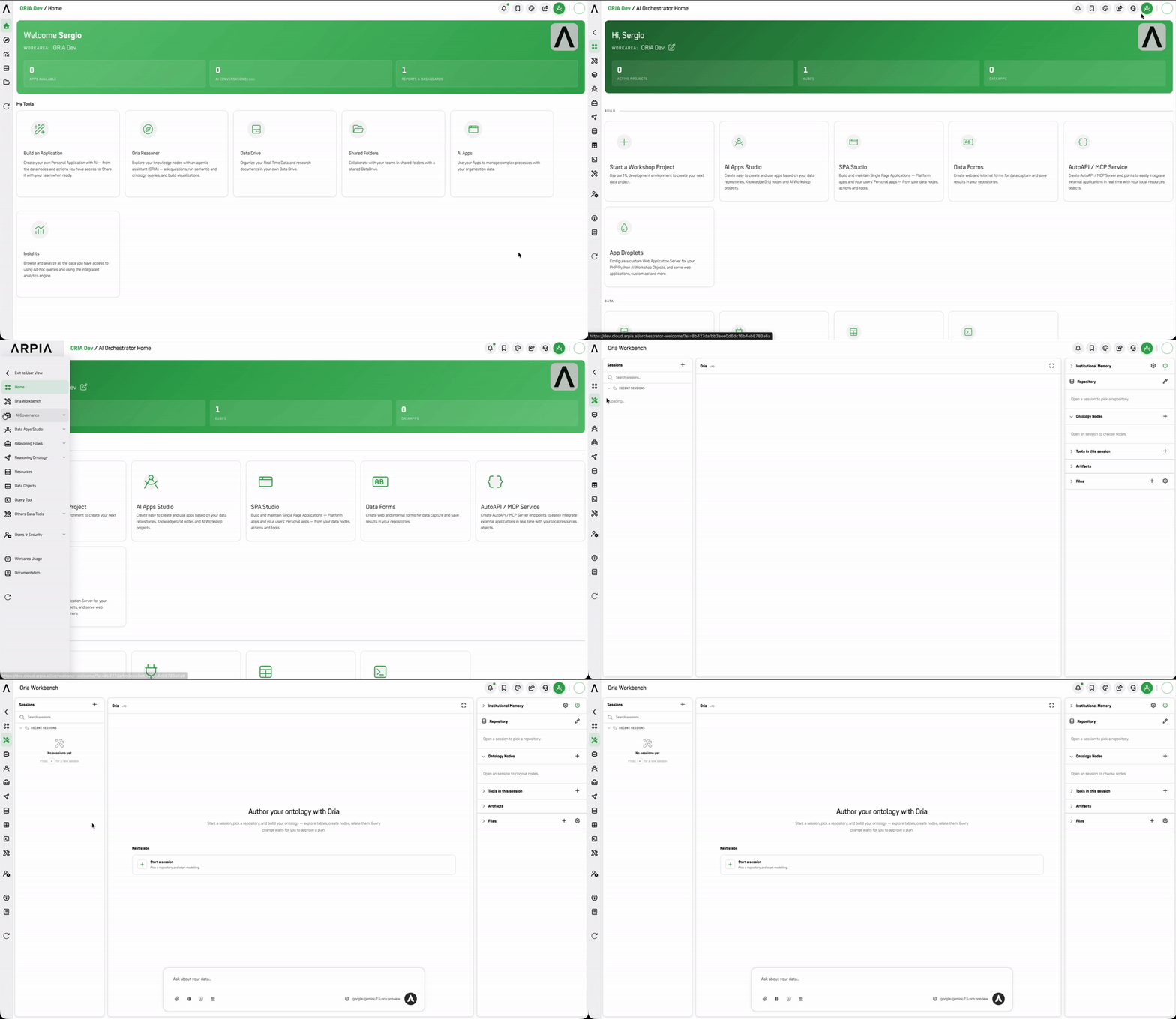
- You'll land on the Oria workspace. With no sessions yet, the left panel shows No sessions yet, and the center reads:
Author your ontology with Oria — Start a session, pick a repository, and build your ontology: explore tables, create nodes, relate them. Every change waits for you to approve a plan.
- Click + in the Sessions panel, or the Start a session card.
Tip: Session names are generated from your first message, so a specific opening prompt usually gives you a usable name with no extra work — "Add a
contract_renewalstable and link it to Customer" produces a findable session; "hey" does not. Rename right away if the generated name isn't clear.
Setting Up a Session
A new session starts with nothing enabled. The center panel states the reasoning directly:
I start with nothing enabled on purpose — reshaping a repository should be something you switched on for this session. Once it is on, every change still waits for you to approve a plan.
Two Next steps cards get you to a working state. Each card disappears once you've completed that step, so the panel always shows what's still outstanding.
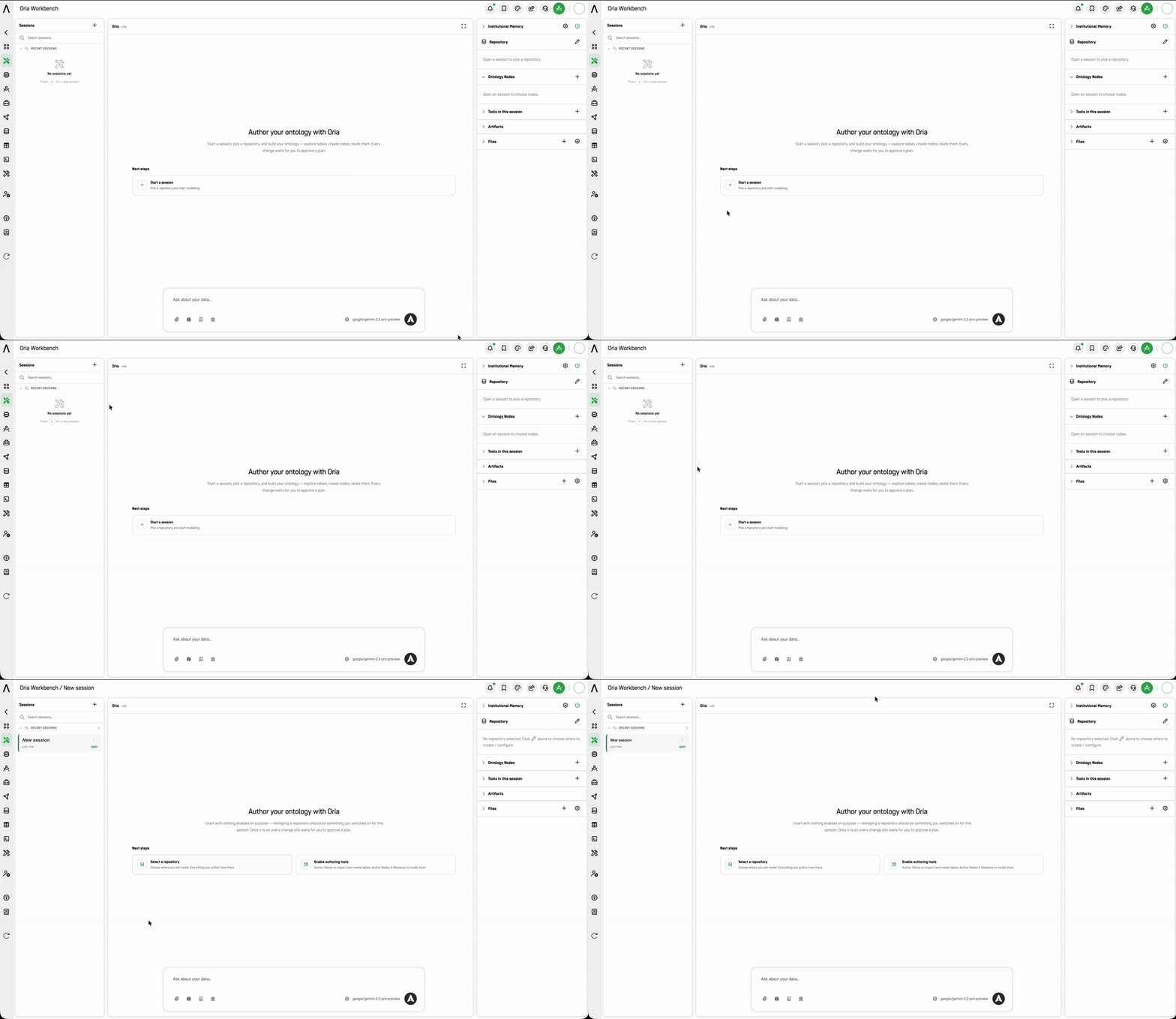
| Card | What it does |
|---|---|
| Select a repository | Choose where you will model. Everything you author lives there. |
| Enable authoring tools | Author Tables to inspect and create tables; Author Nodes & Relations to model them. |
1. Select a repository
The Repository section sits in the right-hand panel, directly under Institutional Memory. Until you choose one, it reads "No repository selected. Click ✏️ above to choose where to create / configure."
Click the ✏️ (pencil) icon on the Repository header to open the picker.
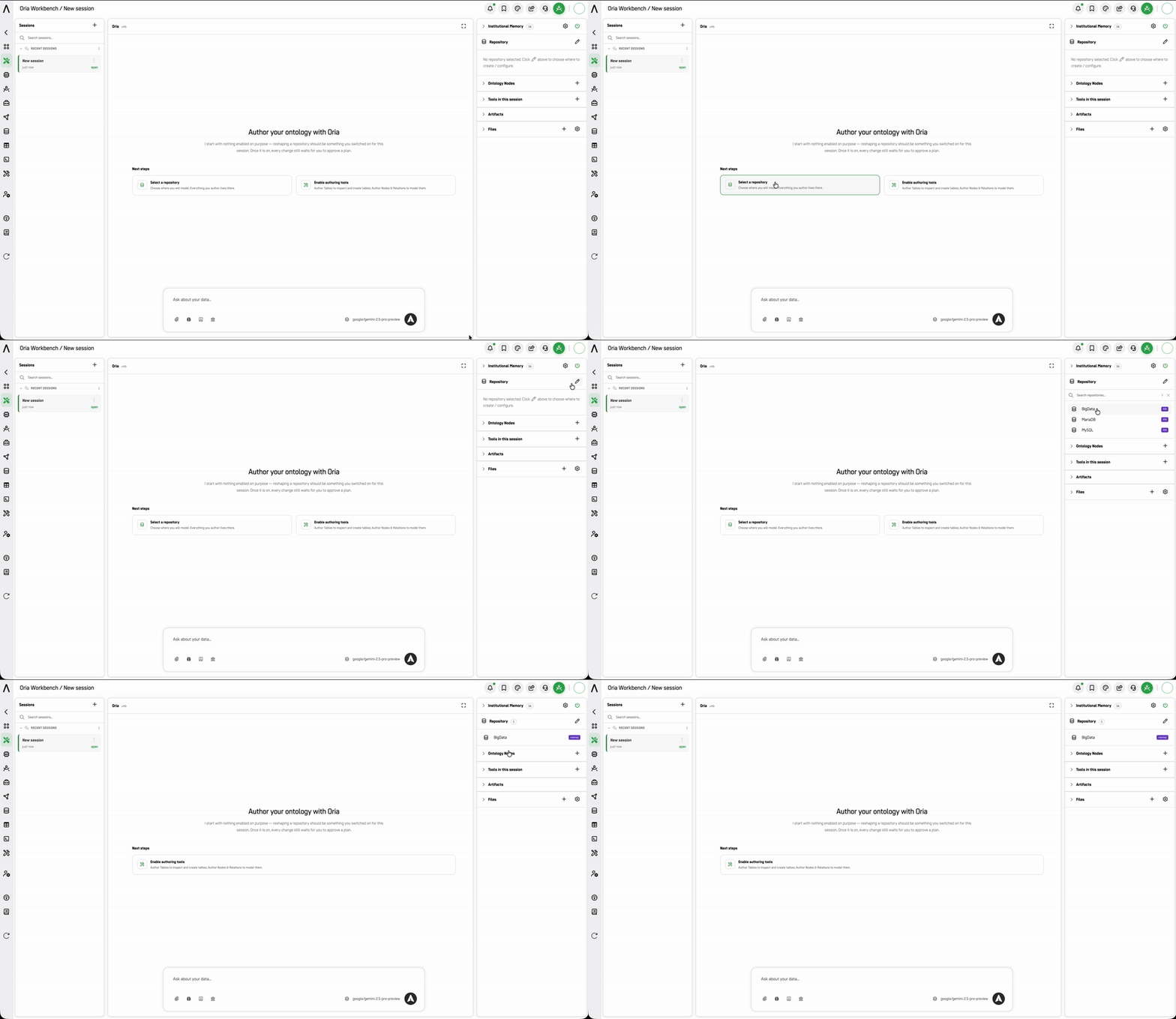
The picker offers a Search repositories… box and lists each repository with a scope badge — RW for read-write. Once selected, the panel shows the repository name with its engine badge (for example, mysql8).
Check the scope badge before you start modeling. Author Tables creates physical tables with engine-aware DDL, and it needs a writable repository. If you select a read-only one, Oria can inspect and describe but not create — and you'll discover that partway through a modeling session rather than at the start.
The repository is the blast radius of the session. Every table and node you author lands in the repository you selected — so this choice, not the tool selection, is what determines what a mistaken instruction can reach. Pick it deliberately, and confirm it before running a change you can't easily reverse.
2. Enable authoring tools
Authoring tools are not enabled by default. Add them from Tools in this session → Ontology Authoring when you're ready to write. See Ontology Authoring below.
Leave them off for exploration or validation-only work. A session without authoring tools can still read, query, and reason — it simply cannot propose structural changes.
How Changes Are Applied
Workbench does not execute structural changes directly from your request. It produces a plan, and every change waits for you to approve that plan before anything is applied.
That gives you four checkpoints, in order:
| Checkpoint | What it controls | Who sets it |
|---|---|---|
| Repository + scope | Where anything can be written, and whether it's writable at all | Administrator |
| Authoring tools | Whether structural changes can be proposed | You, per session |
| Author-Apply permission | Whether proposed ontology changes can be applied, not just drafted | Administrator |
| Plan approval | Whether a specific proposed change is applied | You, per change |
Propose and apply are separate. Author Nodes & Relations can propose ontology changes for any user who enables it. Applying them requires the Author-Apply permission on your profile. Without it, you can model, draft, and review — you just can't commit.
Read the plan, not just the summary. The approval step is only a control if you use it as one. Check that the plan touches the objects you expected, in the repository you expected, and nothing more.
Approval is not change management. Approving a plan authorizes Oria to execute it. It does not substitute for your organization's normal review and approval process for schema changes. Automating the execution of a change does not remove the need to approve it through the proper channel.
The Session Workspace
Once a session is open, the workspace is organized into three areas.
Left Panel — Sessions
- Search sessions to find previous work. Sessions are grouped under Recent Sessions with a relative timestamp and an open link on each card.
Center Panel — Oria Chat
- Type your request in the "Ask about your data…" box.
- Attach files or switch the underlying Model for the session using the controls at the bottom of the chat box.
Right Panel — Session Configuration
This panel controls what Oria has access to and produces within the session. It is visible before a session is open, though its controls only apply once one exists.
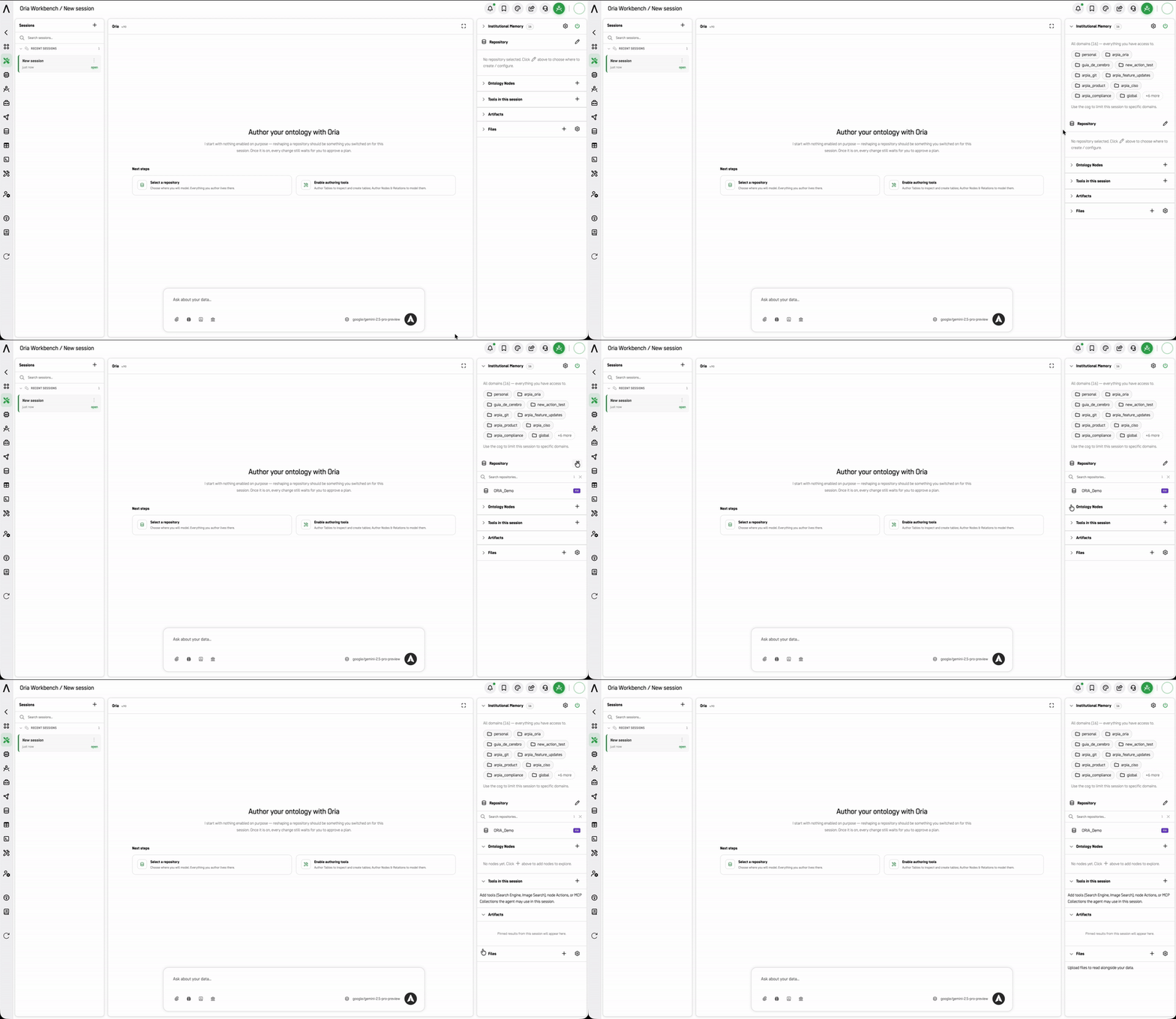
| Section | Purpose | Empty state |
|---|---|---|
| Institutional Memory | Which memory domains Oria may draw on. On by default, across every domain you have access to. | Lists all accessible domains as chips |
| Repository | Where everything you author is created. Set it with the ✏️ icon. Shows the engine badge once selected. | "No repository selected. Click ✏️ above to choose where to create / configure." |
| Ontology Nodes | The knowledge nodes included in this session. | "No nodes yet. Click + above to add nodes to explore." |
| Tools in this session | Internet tools, artifact tools, authoring tools, and MCP Collections the agent may use. | Prompt to add tools |
| Artifacts | Pinned results from the session. | "Pinned results from this session will appear here." |
| Files | Files uploaded for Oria to read alongside your repository data. Has both + and a ⚙ settings control. | "Upload files to read alongside your data." |
Institutional Memory
Institutional Memory (Cerebro) lets Oria draw on your organization's recorded decisions, rules, and procedures while it works — naming conventions, data-layer standards, and prior modeling decisions, not just the structure in front of it.
It is enabled by default in every session, scoped to every domain your profile can access. Two controls sit in the panel header:
| Control | What it does |
|---|---|
| ⏻ (power) | Quick on/off for institutional memory in this session |
| ⚙ (cog) | Opens the full Institutional memory dialog, where you can limit the session to specific domains and control save prompts |
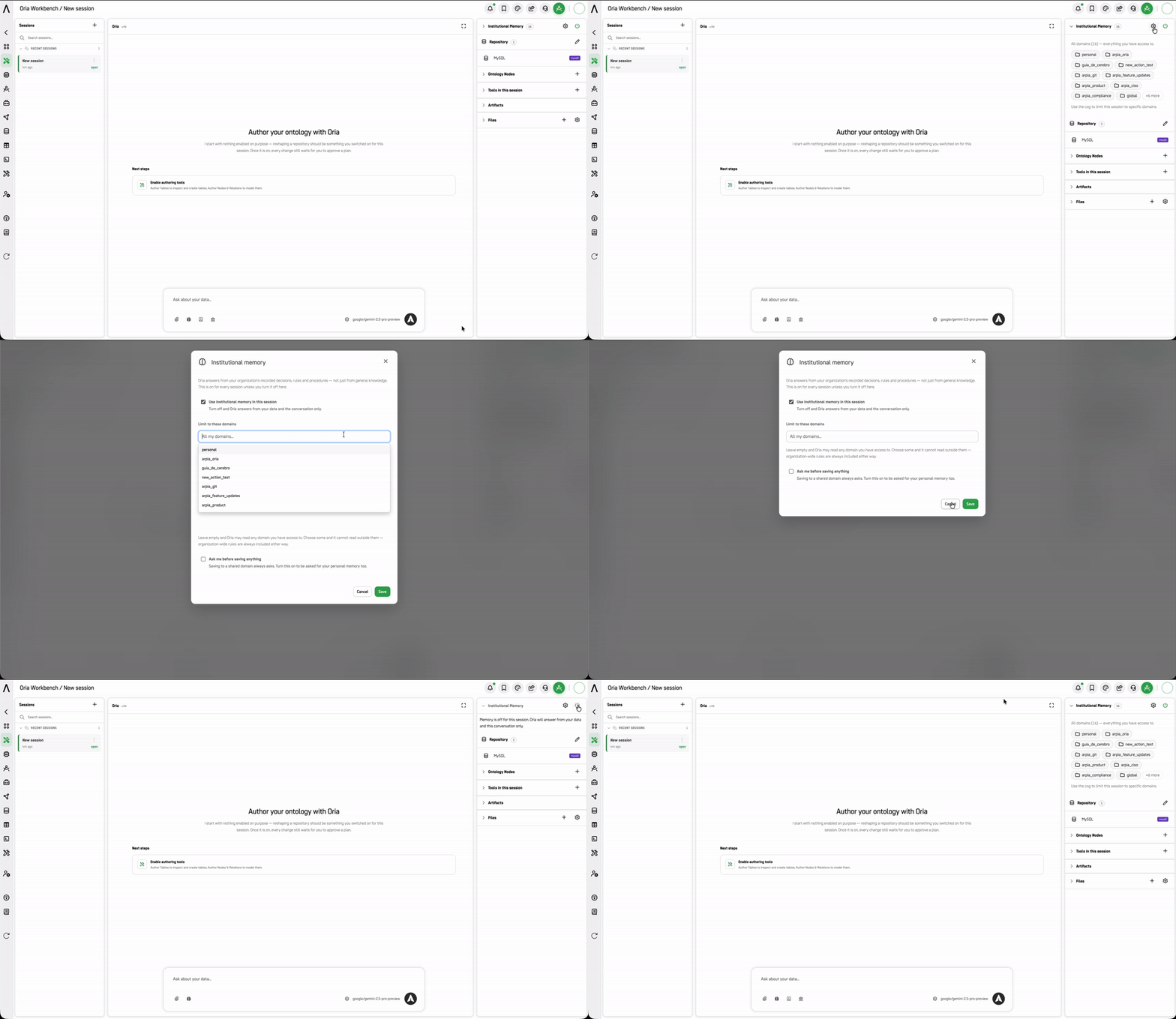
Institutional Memory is a read and write path. Oria can record new memories during a session. Shared-domain writes always prompt for confirmation; personal-domain writes do not, unless you enable Ask me before saving anything.
In Workbench specifically: memory doesn't just shape an answer here — it shapes a plan you'll be asked to approve. If Oria proposes a change because "the naming convention requires it," that convention is the thing to verify, and the place to verify it is before the plan, not at the approval prompt. The prompt shows you what will change; it doesn't show you whether the reason is sound.
Save modeling decisions after the plan is applied and validated, not while it's still a proposal.
For scoping strategy, saving practice, verification, and known limitations, see:
How to Use Cerebro in the ORIA Workbench
Covers the memory panel in depth, plus the part specific to this tool: how memory becomes the stated justification for a plan you're asked to approve, and how to check that reasoning before the approval prompt rather than at it.
Adding Ontology Nodes
Click + next to Ontology Nodes to open the picker.
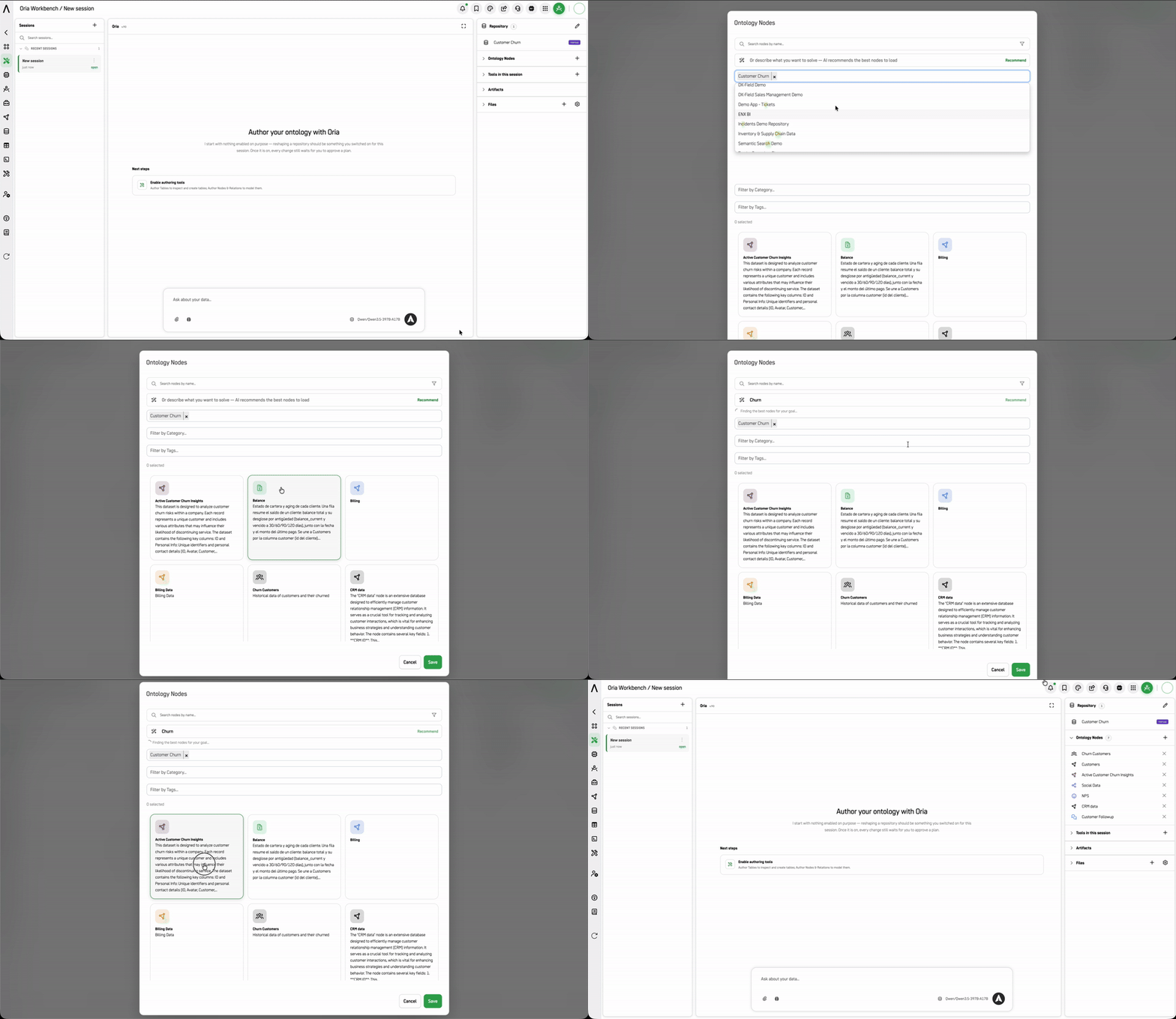
Three ways to find what you need:
- Search nodes by name — free-text search.
- AI recommender — describe what you want to solve in the "Or describe what you want to solve" box and click Recommend; Oria proposes the best nodes to load for that problem.
- Filters — the filter icon beside the search box reveals Filter by Repository, Filter by Category, and Filter by Tags.
Each node card shows its name and a description of what the node contains, what one row represents, and which fields are authoritative. Read the description before selecting — it tells you the grain of the data (for example, one row per order line rather than per order) and any caveats about specific columns.
A running n selected count appears above the cards. Click Save to attach the selected nodes, or Cancel to discard.
Filter by Repository is not the same as the session repository. You can load nodes from repositories other than the one you're authoring into — useful for modeling against a reference source, and worth being deliberate about, since the node list and the write target are independent settings.
Session Tools
Click + next to Tools in this session to open the Session Tools dialog.
The agent can only see tools you enable here. Nothing is on by default.
Two ways to find what you need:
- Search — the "Search tools, actions or nodes…" box filters across every tab at once.
- Recommend — describe what you're trying to do in plain language and click Recommend; Oria proposes the tools, actions, and MCP connections to enable.
Tools are organized across four tabs.
Internet Tools
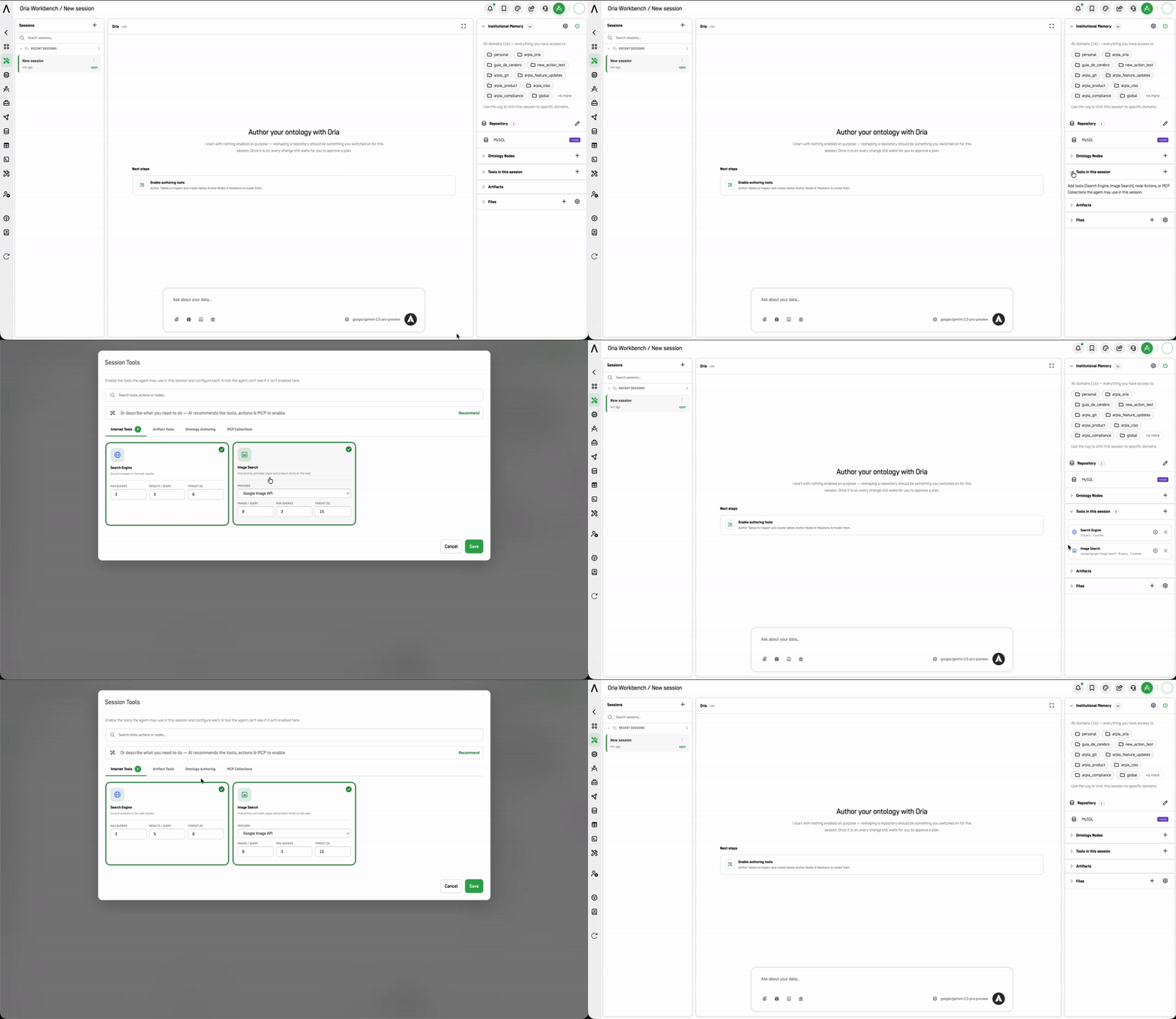
| Tool | What it does |
|---|---|
| Search Engine | Grounds answers in live web results. |
| Image Search | Finds photos, portraits, logos, and product shots on the web. |
Artifact Tools
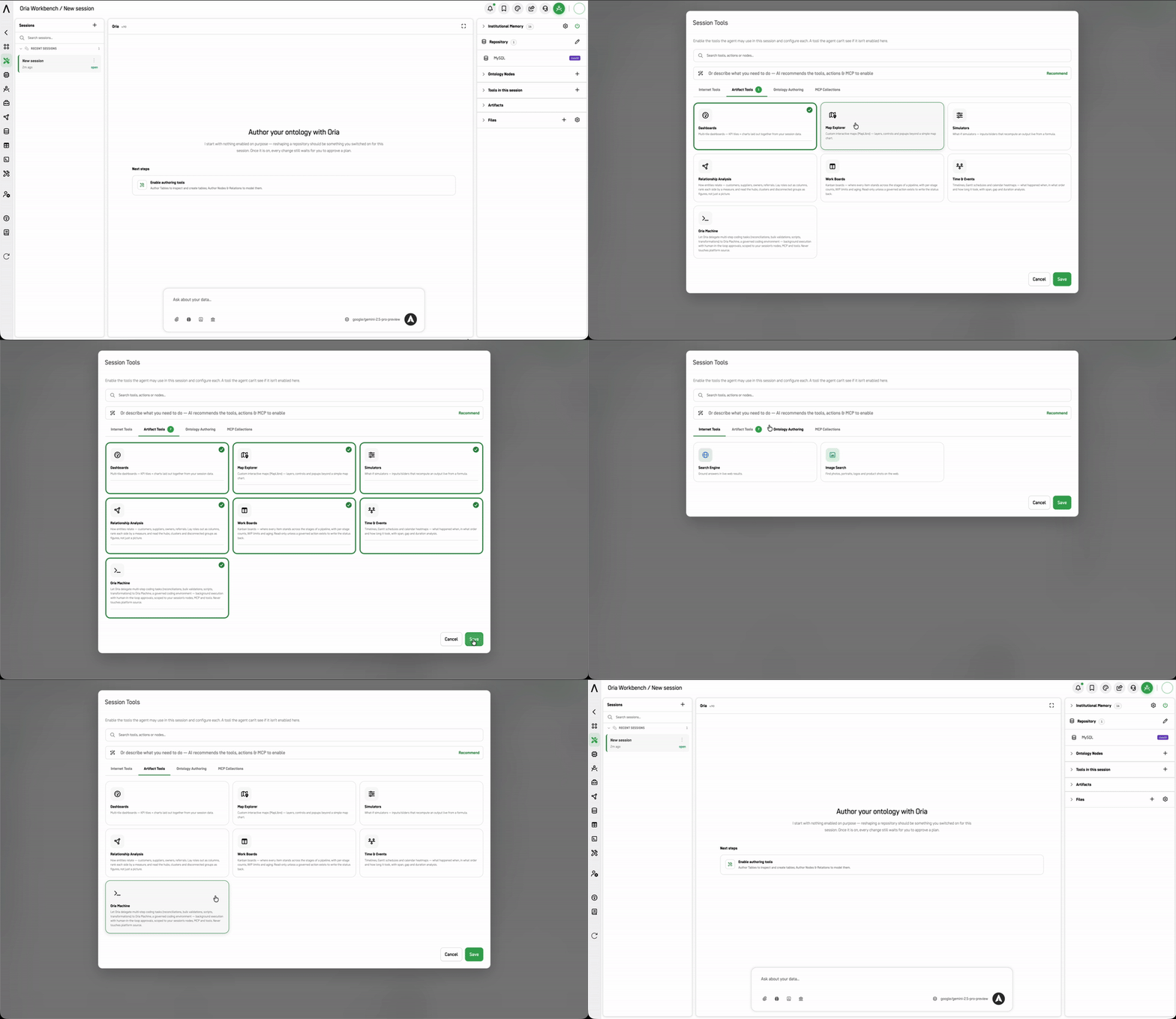
Artifact Tools are what Oria uses to build something from your session data — a visualization or a working environment — rather than just answer in prose.
| Tool | What it does |
|---|---|
| Dashboards | Multi-tile dashboards — KPI tiles and charts laid out together from your session data. |
| Map Explorer | Custom interactive maps (MapLibre) — layers, controls, and popups beyond a simple map chart. |
| Simulators | What-if simulators — inputs and sliders that recompute an output live from a formula. |
| Documents | Real PDF, Word, PowerPoint and Excel files, styled with your document design system and delivered as a download link |
| Relationship Analysis | How entities relate — customers, suppliers, owners, referrals. Lays roles out as columns, ranks each side by a measure, and reads hubs, clusters, and disconnected groups as figures, not just a picture. |
| Work Boards | Kanban boards — where every item stands across the stages of a pipeline, with per-stage counts, WIP limits, and aging. Read-only unless a governed action exists to write the status back. |
| Time & Events | Timelines, Gantt schedules, and calendar heatmaps — what happened when, in what order, and how long it took, with span, gap, and duration analysis. |
| Oria Machine | Lets Oria delegate multi-step coding tasks (reconciliations, bulk validations, scripts, transformations) to a governed coding environment — background execution with human-in-the-loop approvals, scoped to your session's nodes, MCP, and tools. Never touches platform source. |
Live Apps and Repository Storage are not offered here. Both appear in the ORIA Reasoner, where a session has no repository of its own. In the Workbench you already selected one, so persistence and app-building work against that repository rather than a session-scoped store.
Ontology Authoring
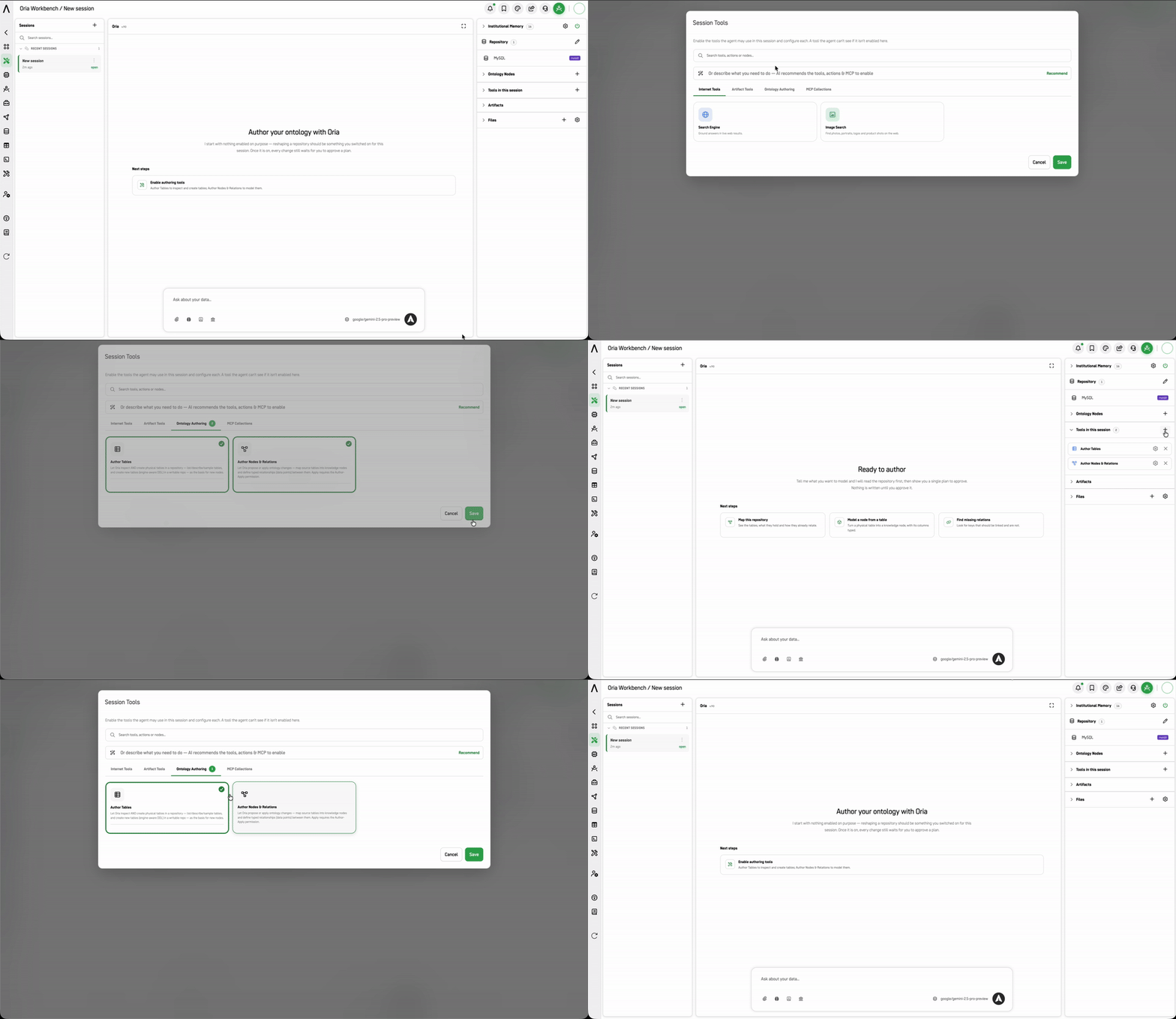
These tools are how Workbench writes. Both are off until you enable them.
| Tool | What it does | What it needs |
|---|---|---|
| Author Tables | Lets Oria inspect and create physical tables in a repository — list, describe, and sample tables, and create new ones with engine-aware DDL — as the basis for new nodes. | A writable repository |
| Author Nodes & Relations | Lets Oria propose or apply ontology changes — map source tables into knowledge nodes and define typed relationships (data points) between them. | Propose: nothing extra. Apply: the Author-Apply permission |
Inspection and creation are bundled. Author Tables grants both read and DDL-create capability in one switch — there is no inspect-only variant. If you only need to look at table structure, consider whether the ORIA Reasoner covers your question instead.
MCP Collections
Internal ARPIA MCP / API collections that let the agent query integrated systems.
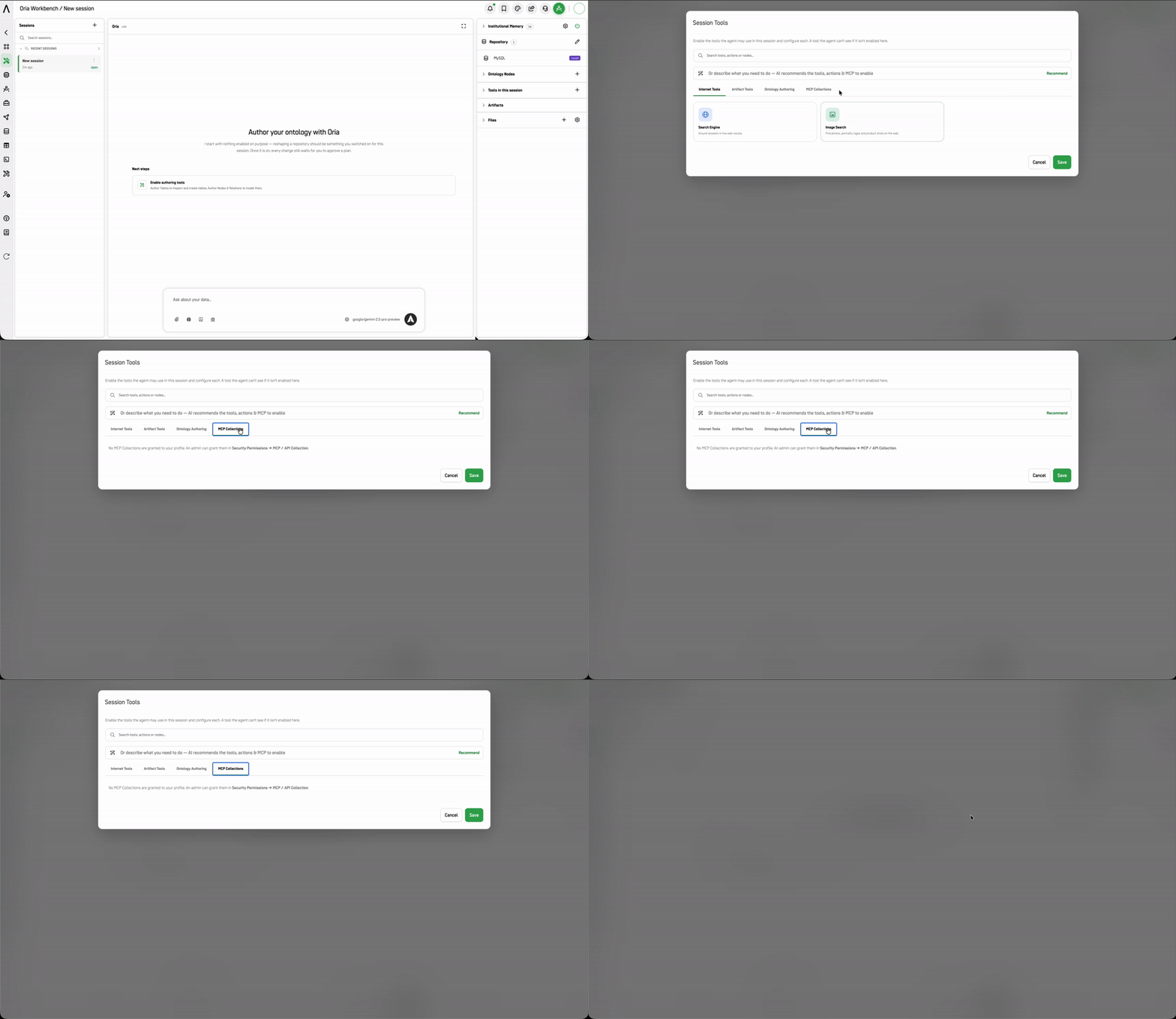
If you see "No MCP Collections are granted to your profile," ask your ARPIA administrator to grant you access to a collection.
Click Save to apply your selections, or Cancel to discard them. Tool selections are session-specific — enabling a tool in one session does not enable it in another.
Typical Workflow
- Create a new session, or resume a previous one.
- Select the repository you intend to model in, and check its scope badge is
RWif you plan to create tables. - Add the Ontology Nodes you intend to touch — and only those.
- Enable the authoring tools you need, when you're ready to write.
- (Optional) Narrow Institutional Memory to the domains relevant to this modeling work.
- (Optional) Upload supporting files (Excel, CSV, and others).
- State the change you want in the chat box.
- Read the plan. Confirm it touches only what you expected, then approve it.
- Validate the result by querying the resulting structure before building anything on top of it.
- Record the decision to Institutional Memory once the change is applied and verified.
Working Safely with Authoring Tools
The product gives you four sequential gates — repository scope, authoring tools, apply permission, plan approval. Two are set by an administrator and two are yours. The two that are yours only work if you treat each as a decision rather than a click-through:
- Scope the repository first, and check it's writable. It bounds everything else in the session.
- Add only the nodes you actually intend to touch, so an over-broad request can't reach structures you didn't mean to change.
- Add authoring tools only when you're ready to write. For exploration or validation-only work, leave them off — or use the ORIA Reasoner.
- Read the plan before approving. An approval gate you skim is a gate that isn't there.
- Validate after applying. Query the resulting structure before you build dashboards or downstream nodes on top of it.
- Run structural changes through your normal change-management process. The plan-approval step is a technical control, not a governance one.
Known Limitations
- Requires admin setup: ORIA Workbench is disabled until an admin configures a Model Group for it. This is set once at the work-area level, not per user — see Before You Start.
- A repository must be selected before you can author anything. Sessions start with none selected.
- Table creation requires a writable repository. A read-only repository allows inspection but not DDL.
- Applying ontology changes requires the Author-Apply permission. Without it, changes can be proposed and reviewed but not committed.
- Authoring tools are off by default and do not carry over between sessions.
- Institutional Memory scope is opt-out, not opt-in: sessions default to every domain your profile can access. Narrow it deliberately when scope matters.
- Personal-domain memory writes are silent by default: enable Ask me before saving anything if you want to review everything Oria commits to your personal memory.
- Capabilities are gated by seat plan as well as by permission. If something is missing and your permissions look correct, check your plan tier before filing a ticket.
- MCP collections depend on org configuration: only collections your organization has enabled and granted to your profile are available.
Updated about 1 month ago