
Aerie
Aerie — AI Agents
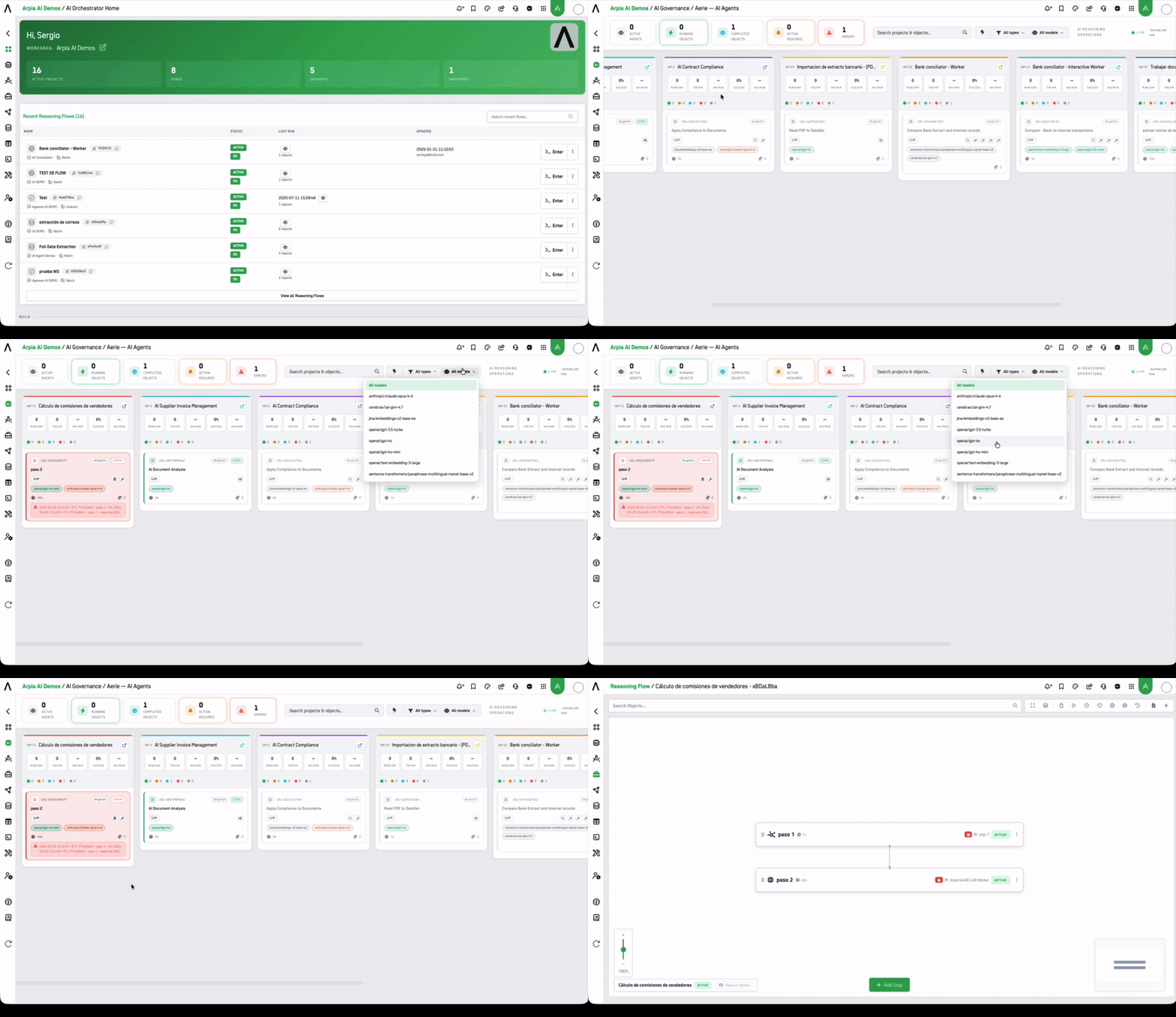
Aerie — AI Agents is the live operations workboard for AI-specific execution within AI Governance. It provides real-time visibility into every AI LLM object running across your workarea — so you can monitor agent activity, detect failures instantly, and intervene without leaving the governance context.
Where the AI Governance Overview shows aggregate performance over time, Aerie — AI Agents shows you what is happening right now.
Note: Aerie also exists within Reasoning Flows as Aerie — Reasoning Operations, which covers all object types (ETL, Transform, ML, Render, and others). This view is scoped exclusively to AI LLM objects.
Who Uses This View
| Role | How They Use It |
|---|---|
| CISO / Security Officer | Monitor active AI agents in real time. Detect unexpected execution, anomalous model usage, or unauthorized objects running outside of policy. |
| Compliance Officer | Validate that only approved AI objects are executing. Correlate errors with audit events in AI Governance logs. |
| Platform Administrator | Identify and kill runaway AI processes before they impact cost or stability. Reload the process list to confirm termination. |
| AI Product Owner | Track per-project agent activity, success rates, and token consumption across all AI LLM objects at a glance. |
| CTO / Technical Lead | Review KPIs across projects to identify underperforming AI workloads and prioritize optimization. |
Global Health Strip
At the top of the view, a real-time health strip provides a workarea-wide snapshot:
| Metric | Description |
|---|---|
| Active Agents | AI LLM objects currently executing or polling for work |
| Running Objects | Objects with an active run in progress |
| Completed Objects | Objects that finished successfully in the current window |
| Action Required | Objects that need human intervention to proceed |
| Errors | Objects that failed and have not been resolved |
The strip updates live. An increase in Errors without a corresponding rise in Completed Objects is an early signal of a model or provider issue.
Project Columns
The board organizes AI LLM objects by project — one column per active project. Each column displays:
- Project identifier (WP-XX workspace code and project name)
- KPI bar with four metrics:
- Runs/day — execution frequency
- Tok/hr — token consumption rate
- Avg run — average execution duration
- % Success — success rate
Object Cards
Each AI LLM object appears as a card within its project column. Cards surface:
- Object name and type (
AI LLM) - Object ID — short identifier (e.g.
OBJ-dV0hOsIMh) - Environment badge — runtime environment (e.g.
dk-ga-lim) - Status badge —
RUNNING,DONE,ERROR - Model pills — active AI models bound to the object (e.g.
openai/gpt-4o,jina/embeddings-v2-base-es,openai/gpt-3.5-turbo,model n/a) - Execution timer — elapsed time for the current or last run
- Token counter — cumulative token usage
- Log preview — last log entry displayed inline for immediate triage
Type Filters
Filter the board by execution mode to focus on specific object kinds:
- All types (default)
- Batch
- Interact
- API
- MCP
- WARP
AI Workshop Process List
The AI Workshop Process List is accessible via the process manager icon in the toolbar. It provides a detailed table of all currently running AI processes across the workarea — beyond what is visible on the board.
Each row in the list displays:
| Column | Description |
|---|---|
| Kind | Process type (e.g. Process) |
| Id / Token | Full process token and object identifier |
| Project | Project the process belongs to |
| Object | Object name |
| Start Time | When the process started |
| Pid / Port | System process ID and port |
| Sec. Running | Elapsed seconds since start |
| Status | running |
Available actions:
- Reload Processes — refresh the list to reflect current state
- Kill Processes — terminate selected processes immediately. Select one or more rows using the checkboxes, then click Kill Processes. Use this when a process is consuming excessive tokens, blocking downstream dependencies, or running outside of expected parameters.
Killing a process is irreversible. Confirm the object and project before proceeding.
Relationship to AI Governance
Aerie — AI Agents is the operational layer of AI Governance. Use it in combination with the other AI Governance views for end-to-end incident response:
- Detect — Aerie — AI Agents surfaces the error or anomaly in real time
- Correlate — AI Governance Overview shows provider health, success rate trends, and token anomalies over time
- Audit — Logs & Usage provides the full interaction history and audit trail
- Intervene — Return to Aerie to kill the process or take corrective action
Related
- AI Governance Overview — aggregate metrics and provider health
- Aerie — Reasoning Operations — full object-type operations board in Reasoning Flows
- Logs & Usage — full audit trail and interaction history
Updated 3 months ago