
🧠 Reasoning Knowledge Graph
Reasoning Knowledge Graph
A full catalog of all the elements that build the Knowledge Grid. The Reasoning Knowledge Graph is an interactive map of your Knowledge Nodes — search, filter, inspect, and connect every element from a single view.
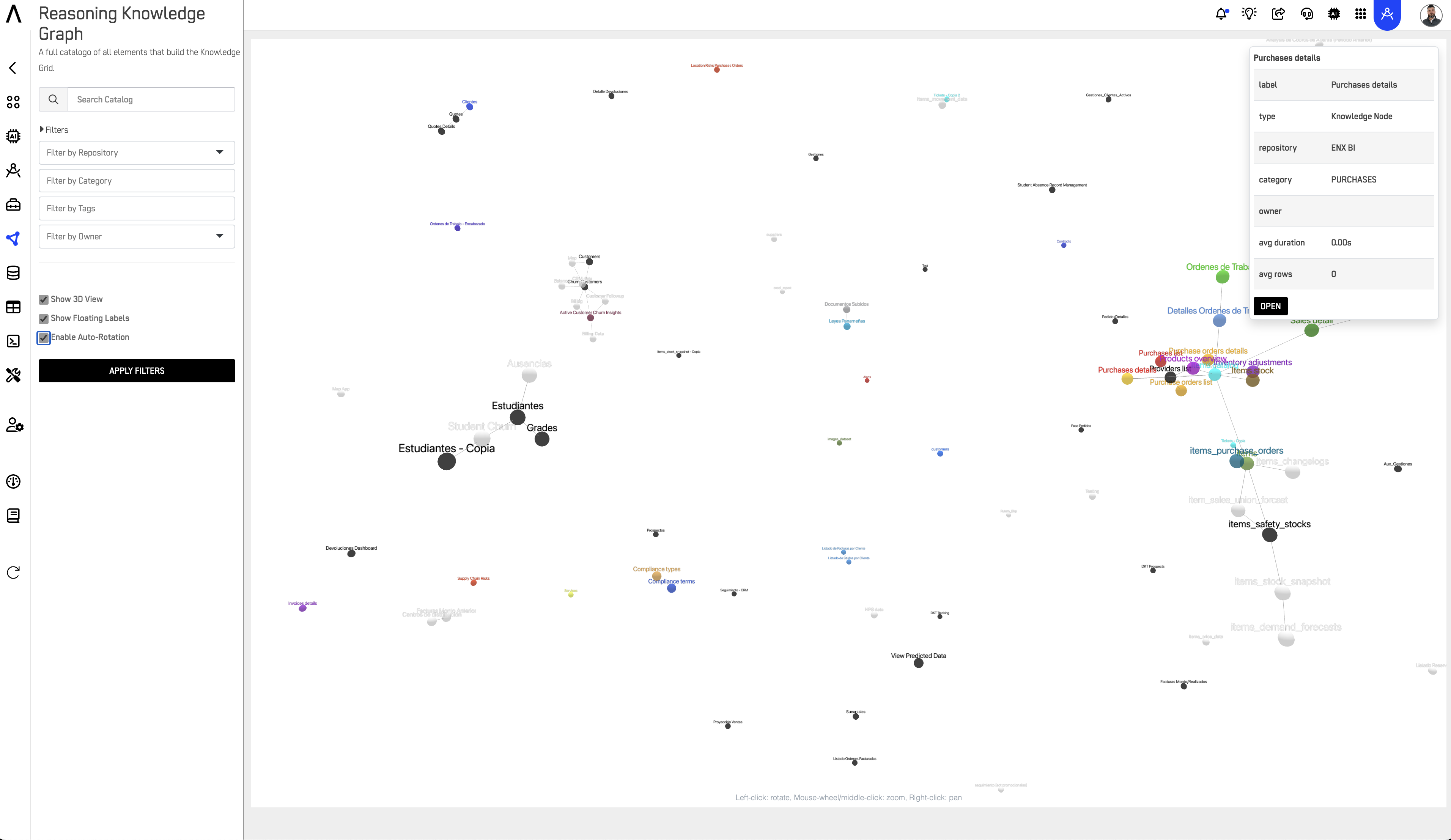
Exploring the Catalog
Use the left panel to find what you need:
- Search Catalog — search elements by name.
- Filters — narrow the view by Repository, Category, Tags, or Owner, then click Apply Filters.
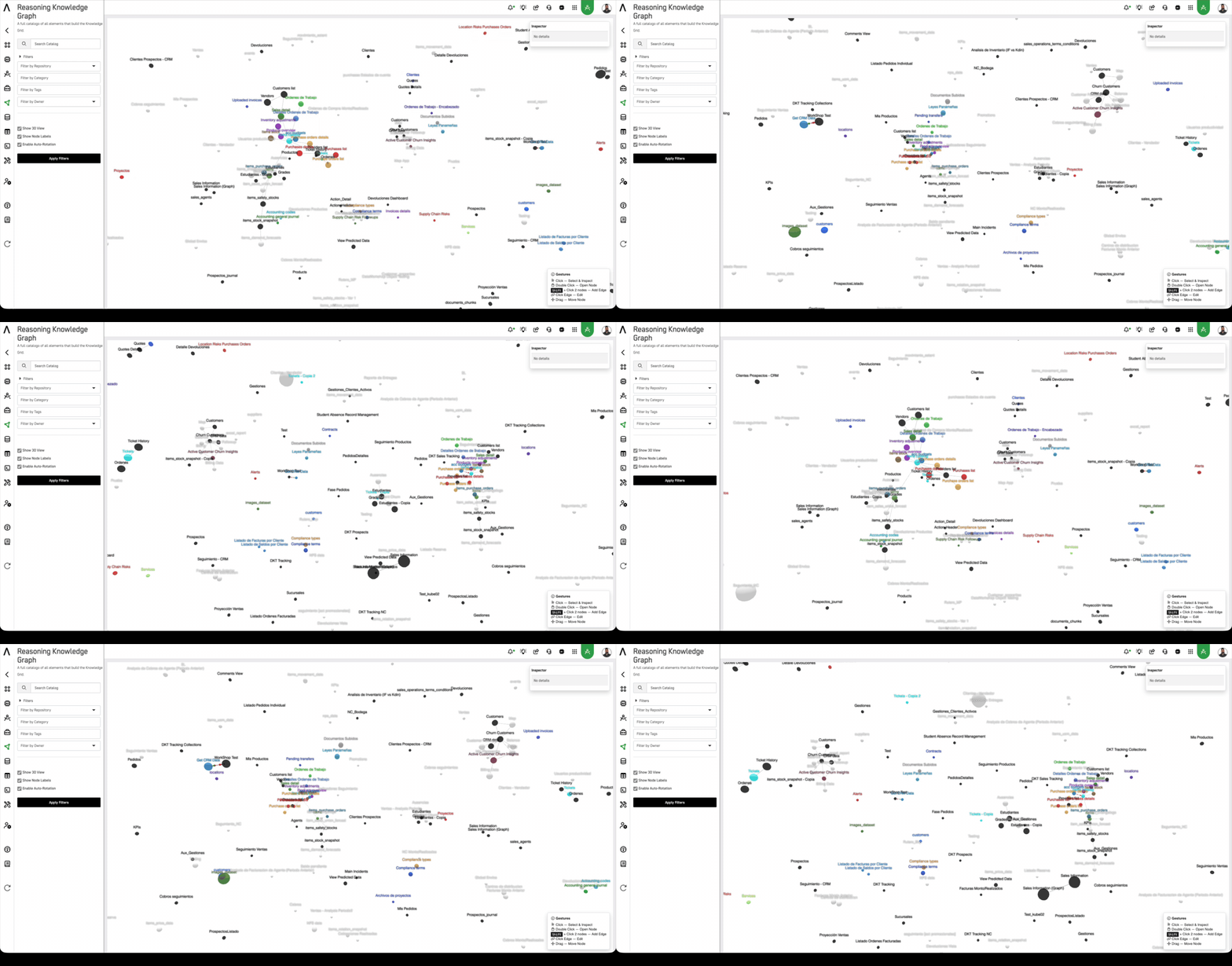
- Show 3D View — switch between the 2D and 3D layout of the graph.
- Show Node Labels — toggle element names on or off. Works the same in both 2D and 3D.
You can combine search and filters at the same time. For example, search for "sales" and filter by Category = "Reports" to find exactly what you need.
Inspecting an Element
Click any node to open the Inspector, which shows its details:
| Field | Description |
|---|---|
| Label | The node's display name. |
| Slug | The node's unique identifier. Useful for technical references or integrations. |
| Type | The element type, e.g. Knowledge Node. |
| Repository | The repository the node belongs to. |
| Category | The category assigned to the node within its repository. |
| Avg Duration | Average execution time of the node (where applicable). |
| Avg Rows | Average number of rows processed (where applicable). |
Click Open to go straight to the node. You can also double-click any node on the canvas for the same result.
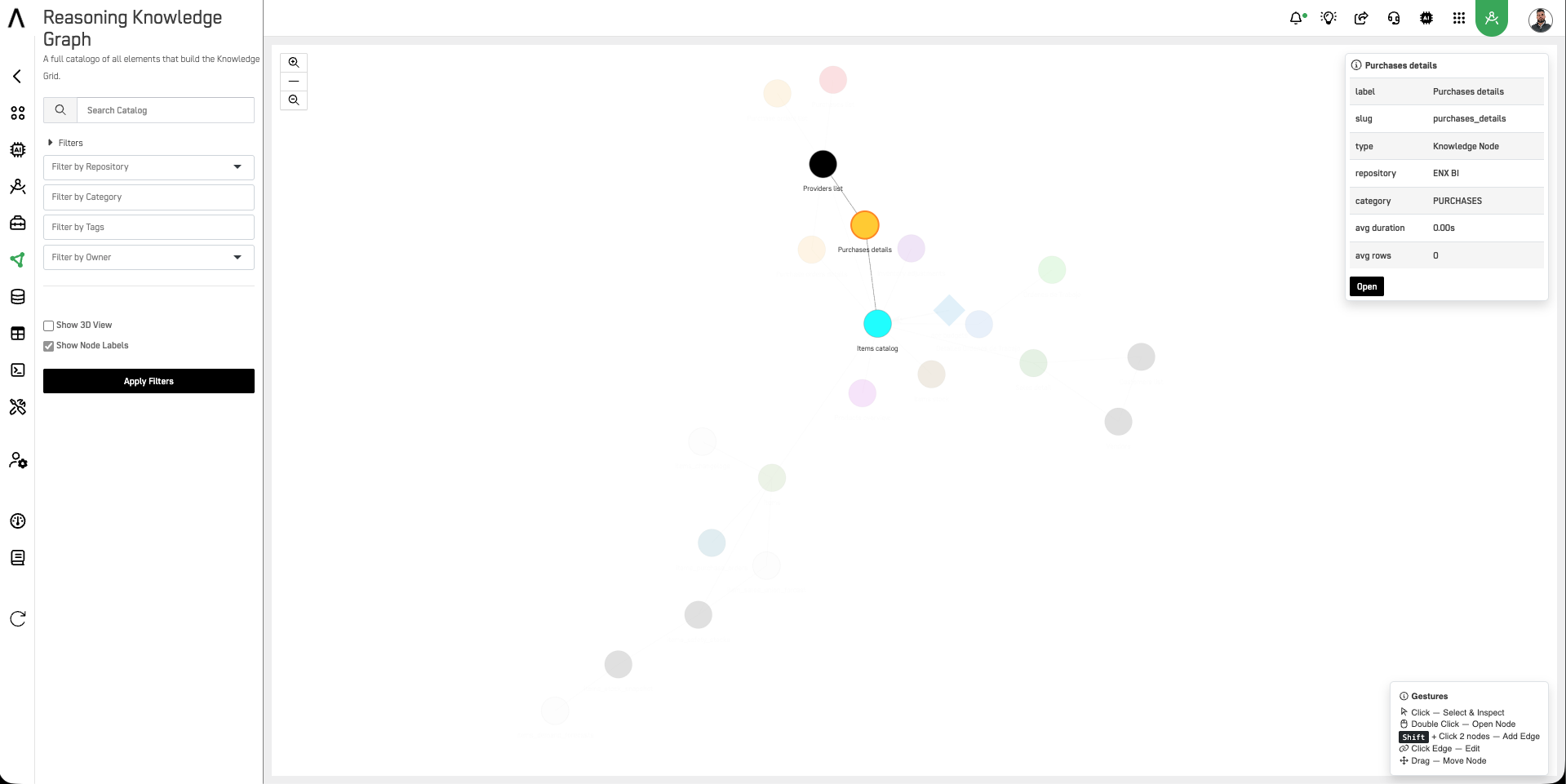
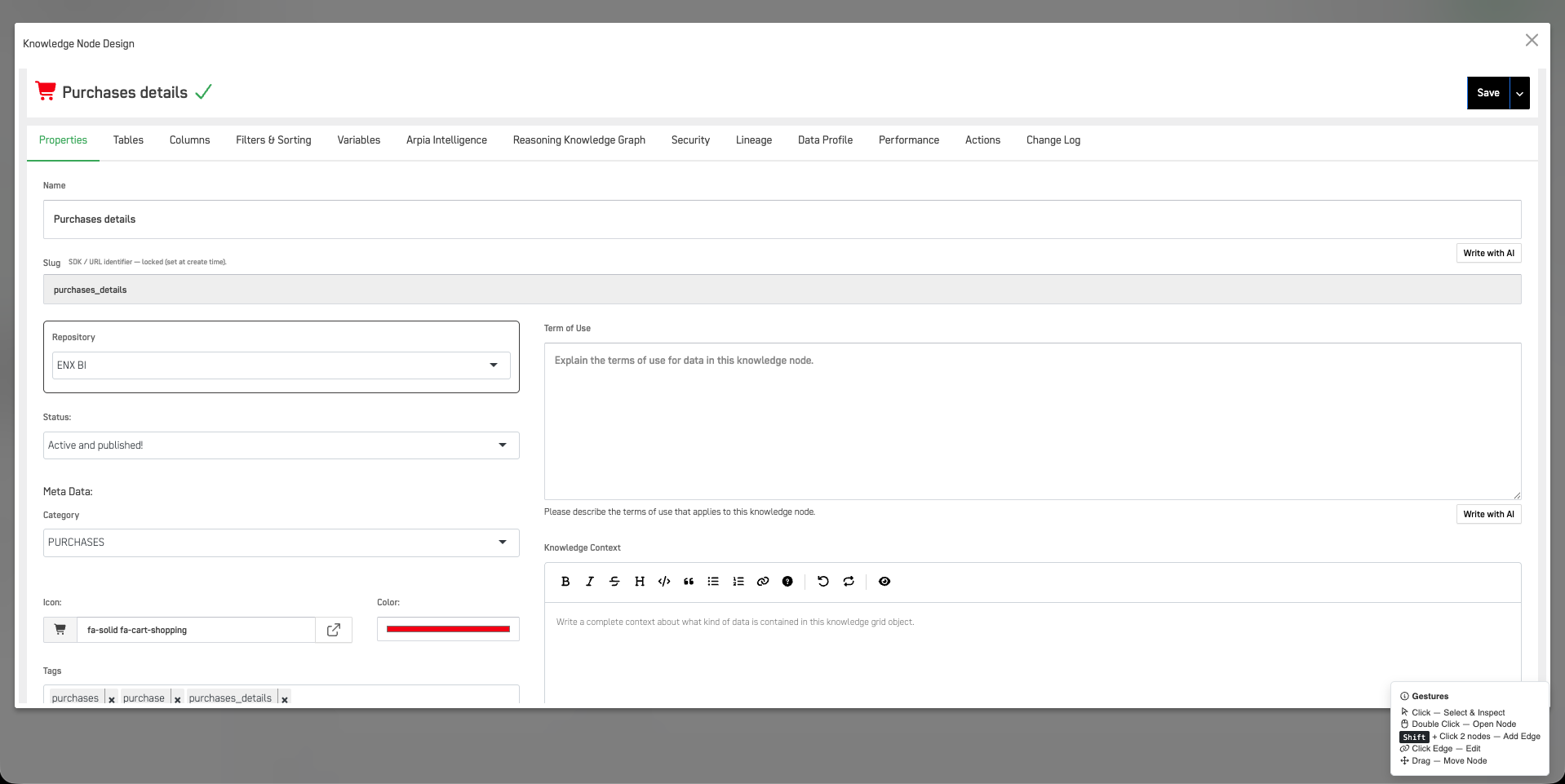
Working With the Graph
Interact with the graph using these gestures:
| Gesture | What it does |
|---|---|
| Click | Selects the node and opens the Inspector. |
| Double-click | Opens the node directly (same as pressing Open in the Inspector). |
| Shift + click two nodes | Adds an edge (a relationship) between them. Click the first node, hold Shift, then click the second. |
| Click an edge | Opens the edge editor to view or change its link type. |
| Drag | Moves a node to a new position on the canvas. |
Managing Link Types
Link types define the kinds of relationships (edges) that connect your Knowledge Nodes — for example, "depends on", "feeds into", or "replicates". ARPIA includes a Link Types manager to find, organize, and create them.
- Search and select — a search field with a scrollable fixed-height list lets you quickly find and pick an existing link type.
- Group Tag — organize link types under a tag. Pick an existing tag, or type a new one to create it on the fly.
Link Types are shared across your entire organization. Any tag or type you create will be available to all users on your platform.
Image placeholder — the Link Types manager (search field + scrollable list + Group Tag field).
Who Uses the Knowledge Graph
The Knowledge Graph is useful across roles — not just for technical teams.
| Role | How they use it |
|---|---|
| Data Engineer | Maps dependencies between nodes, documents data lineage, and connects related elements across repositories. |
| AI / ML Engineer | Discovers which nodes feed into reasoning flows, identifies reusable components, and traces model inputs. |
| Data Analyst | Explores the catalog to find the right nodes for a report or analysis without needing to ask engineering. |
| Product Manager | Gets a visual overview of what data assets exist, who owns them, and how they relate — without reading code. |
| IT / Platform Admin | Audits the catalog for ownership gaps, orphaned nodes, or missing relationships across the organization. |
| Business Stakeholder | Uses the 3D view to understand the shape of the organization's data assets at a high level. |
Common Use Cases
Find all nodes in a repository
- Open the left panel.
- Select the repository in the Repository filter.
- Click Apply Filters.
- The canvas updates to show only nodes from that repository.
Connect two existing nodes
- Use Search or filters to locate both nodes on the canvas.
- Click the first node to select it.
- Hold Shift and click the second node.
- An edge is created. Click on it to assign a Link Type.
Explore an unfamiliar node
- Click the node to open the Inspector.
- Review its label, slug, repository, and category to understand what it is.
- Press Open to go to the node's full detail screen.
Audit ownership across the catalog
- In the left panel, leave the search empty.
- Use the Owner filter to check which nodes are assigned to a specific owner — or identify nodes with no owner assigned.
- Use the Inspector to review each node's details and open it to update ownership if needed.
Map data lineage for a reasoning flow
- Search for the node that feeds your reasoning flow.
- Use Shift + click to connect it to its upstream or downstream nodes.
- Assign a meaningful Link Type to each edge (e.g. "feeds into", "depends on").
- Switch to 3D View to get a spatial overview of the full dependency chain.
Discover reusable components
- Filter by Category to see all nodes of a specific type (e.g. transformations, lookups).
- Click through nodes to inspect their Avg Duration and Avg Rows — useful signals for performance.
- Double-click any promising node to open it and assess whether it fits your use case.
Updated 4 months ago