
Configuring the ORIA Reasoner
Configuring the ORIA Reasoner
Audience: ARPIA administrators. End users should refer to How to Use the ORIA Reasoner.
ORIA Reasoner does not work out of the box. Before any user can run a session, an administrator must configure a Model Group for it. If this is left unset, ORIA Reasoner — and the model picker inside a session — is disabled.
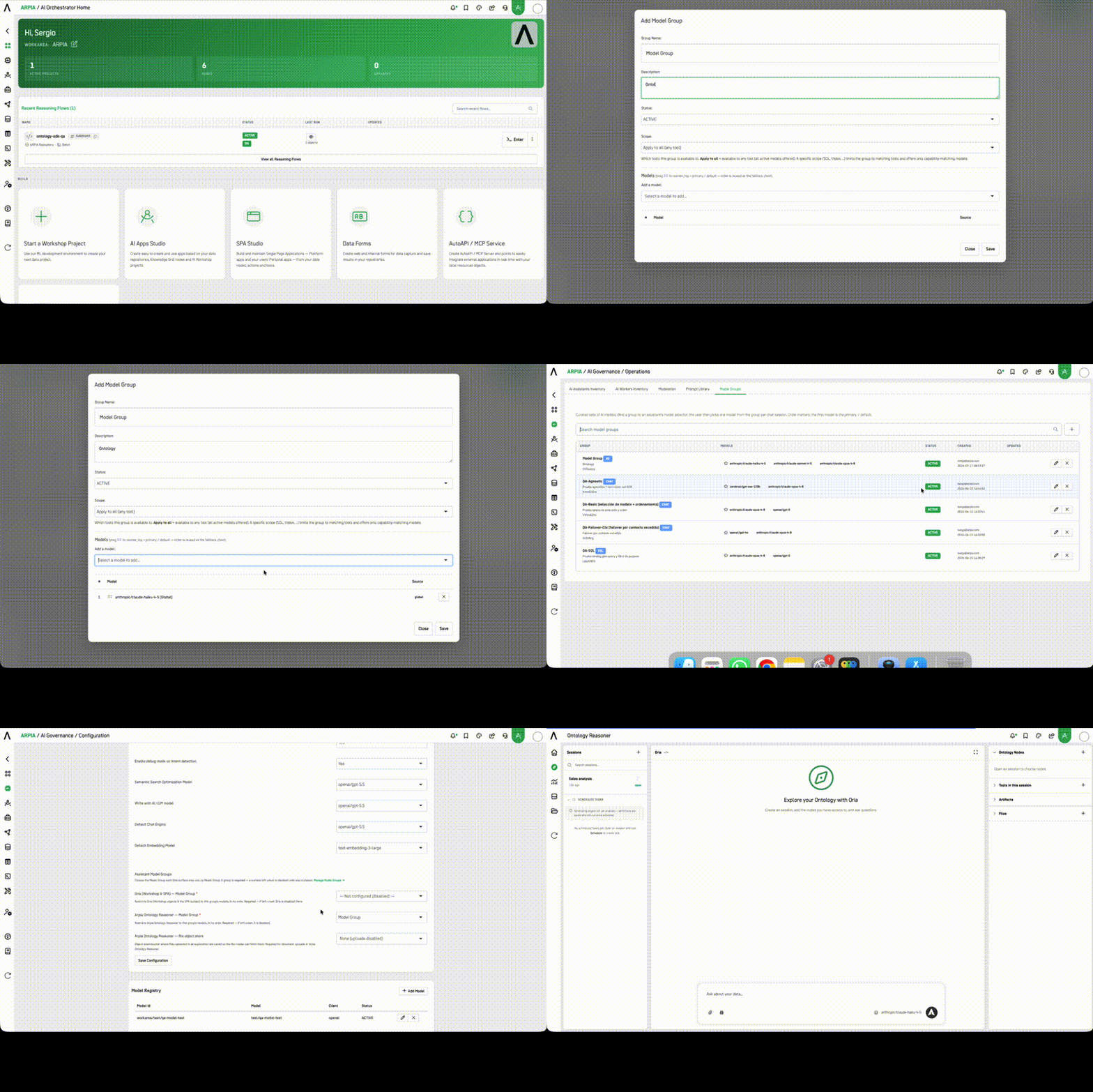
Setup Checklist
| Step | Setting | Required for |
|---|---|---|
| 1 | Enable AI in this work-area | Everything |
| 2 | Model Group | The Reasoner to run at all |
| 3 | File object store | File uploads inside a session |
| 4 | Cerebro work-area enablement | Institutional Memory |
| 5 | Profile permissions | Ontology Actions, MCP Collections, Connected Apps |
1–3. Model Group and File Object Store
- Go to ARPIA / AI Governance / Configuration.
- Under Global AI Configuration, confirm AI is enabled for the work-area (Enable AI in this work-area = Yes).
- Under Manage Model Groups, create the group of LLMs you want available (e.g.,
openai/gpt-5.5). - Back in Global AI Configuration, under Assistant Model Groups, set:
- ORIA Reasoner — Model Group (required) — restricts ORIA Reasoner to this group's models, in order. If left unset, ORIA Reasoner is disabled. [CONFIRMAR: exact field label in the current build]
- ORIA Reasoner — file object store (required for uploads) — the object-store bucket where files uploaded during an exploration are saved, so the file-reader can fetch them. Leaving this as "None" disables document uploads. [CONFIRMAR: exact field label in the current build]
- Click Save Configuration.
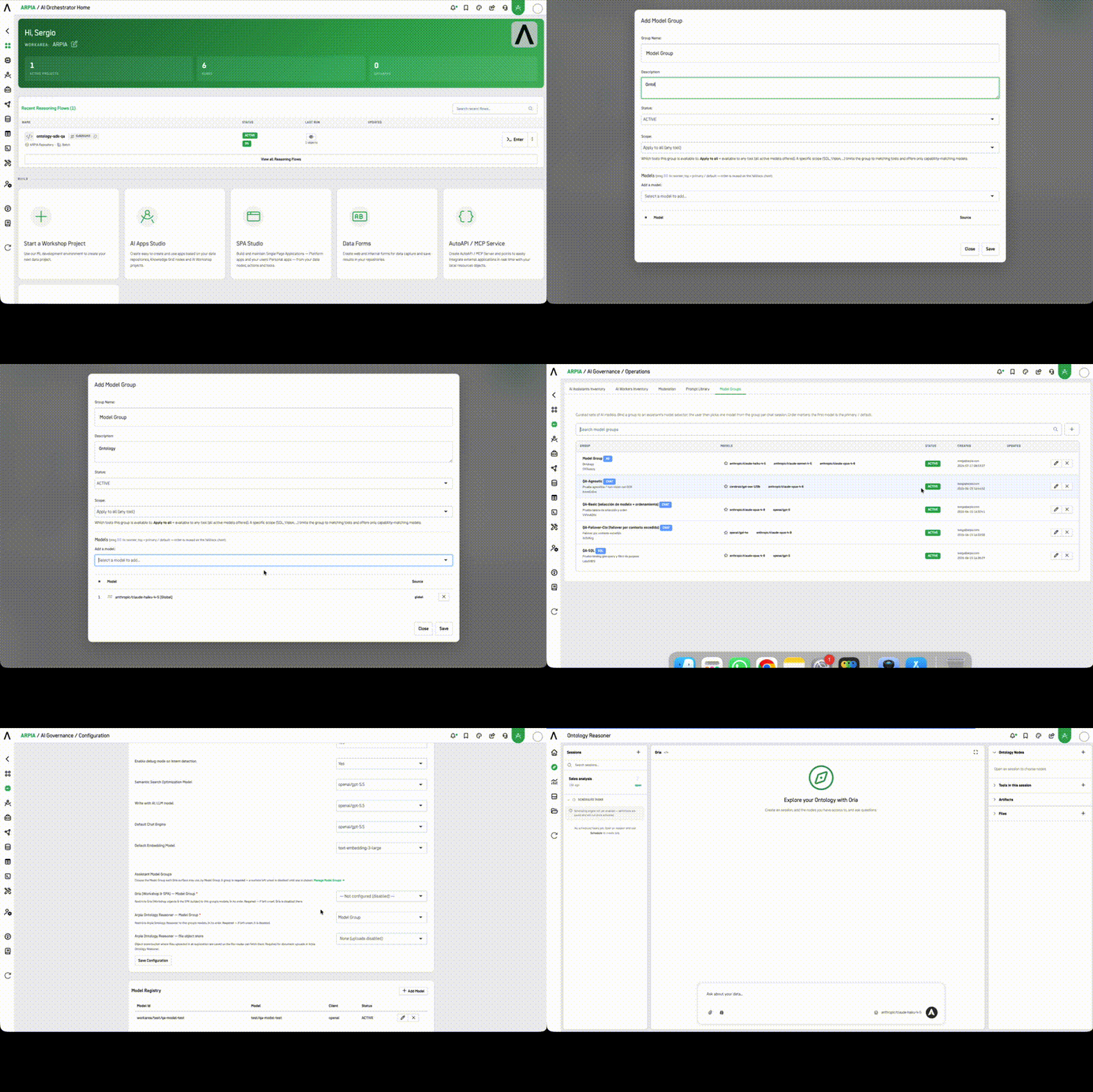
Model Groups are per-assistant, not global. The same screen also sets the Oria (Workshop & SPA) — Model Group, a separate and equally required setting for Oria inside Workshop objects and the SPA builder. Configuring one does not configure the other. A work-area where the Workbench works and the Reasoner doesn't is almost always this.
Model order matters. The group defines both which models are available and the order in which they're offered. Put the model you want as the working default first.
4. Institutional Memory (Cerebro)
Institutional Memory is on by default in every Reasoner session, scoped to every domain the user's profile can access. It is not an opt-in feature you enable per user — it's a default you are choosing to leave in place.
Two administrator responsibilities follow from that:
- Work-area enablement. Cerebro must be enabled for the work-area separately from the Reasoner's Model Group.
- Domain scopes. Users need
read_onlyon the domains they will query, andread_writeon any domain they will save to.
Domain access is granted, never revoked. There is no action to remove a user from a domain or to change an existing scope (
read_only→read_write). Both require an administrator, and the direction of travel is one-way in practice. Grant deliberately.Scratch and test domains are visible in the user-facing picker. They appear alongside authoritative domains with no visual distinction. Expire or retire test domains rather than leaving them in circulation.
Full behavior, including save consent and the edit window, is documented in How to Use Institutional Memory (Cerebro) in the ORIA Reasoner.
5. Permission-Gated Tool Categories
Three of the five tool categories in the Session Tools dialog are granted per profile. Until granted, users see an empty tab — expected behavior, not an error.
| Category | Where to grant it | User-facing empty state |
|---|---|---|
| Ontology Actions | Granted per profile against the ontology nodes the action writes to | "No actions granted to your profile." |
| MCP Collections | Security Permissions → MCP / API Collection | "No MCP Collections are granted to your profile." |
| Connected Apps | AutoAPI → Connect MCP Client, then grant per profile | "No external MCP connectors are available to your profile." |
Internet Tools and Artifact Tools are not permission-gated. Any user with Reasoner access can enable them.
Capabilities Available Without a Grant
Two Artifact Tools provision or execute rather than visualize, and are available to any Reasoner user by default:
| Tool | What it does |
|---|---|
| Repository Storage | Provisions a persistent MySQL database scoped to the exploration, which survives across sessions and can later be published as a tenant repository. |
| Oria Machine | Executes multi-step coding tasks in a governed environment with human-in-the-loop approvals, scoped to the session's nodes, MCP, and tools. Never touches platform source. |
Neither writes to your ontology without a governed Ontology Action, and Oria Machine requires human approval to act. But both create durable state outside the session, and neither is gated the way Ontology Actions, MCP Collections, and Connected Apps are.
Worth deciding explicitly whether that matches your governance posture, particularly if your change-management process treats database provisioning as a controlled activity. If it doesn't, the control point is profile-level Reasoner access itself, not the tool picker.
Troubleshooting
| Symptom | Cause |
|---|---|
| Reasoner greyed out or not listed in My Tools | No Model Group set for the Reasoner |
| Model picker disabled inside a session | No Model Group set for the Reasoner |
| Workbench Oria works, Reasoner doesn't | Model Group set for Workshop & SPA but not Reasoner |
| Users can't attach files | File object store unset ("None") |
| Institutional Memory panel empty or absent | Cerebro not enabled for the work-area, or no domain scopes granted |
| Repository Storage added but nothing happens | Expected — the user must open the tool's ⚙ and create the database |
| Scheduled Tasks saved but never run | Expected — the scheduling engine is not yet active |
Related
Updated about 1 month ago