
Accessing the ARPIA Platforms
Accessing the ARPIA Platforms
Welcome to ARPIA, your platform for secure, centralized management and automation. This guide will help you access ARPIA quickly and securely.
ARPIA offers three environments: ARPIA Platform (United States), ARPIA Platform UK (United Kingdom), and ARPIA Cloud (LATAM). Your ARPIA Administrator will assign you to the appropriate one.
Step 1: Navigate to ARPIA and Select Your Region
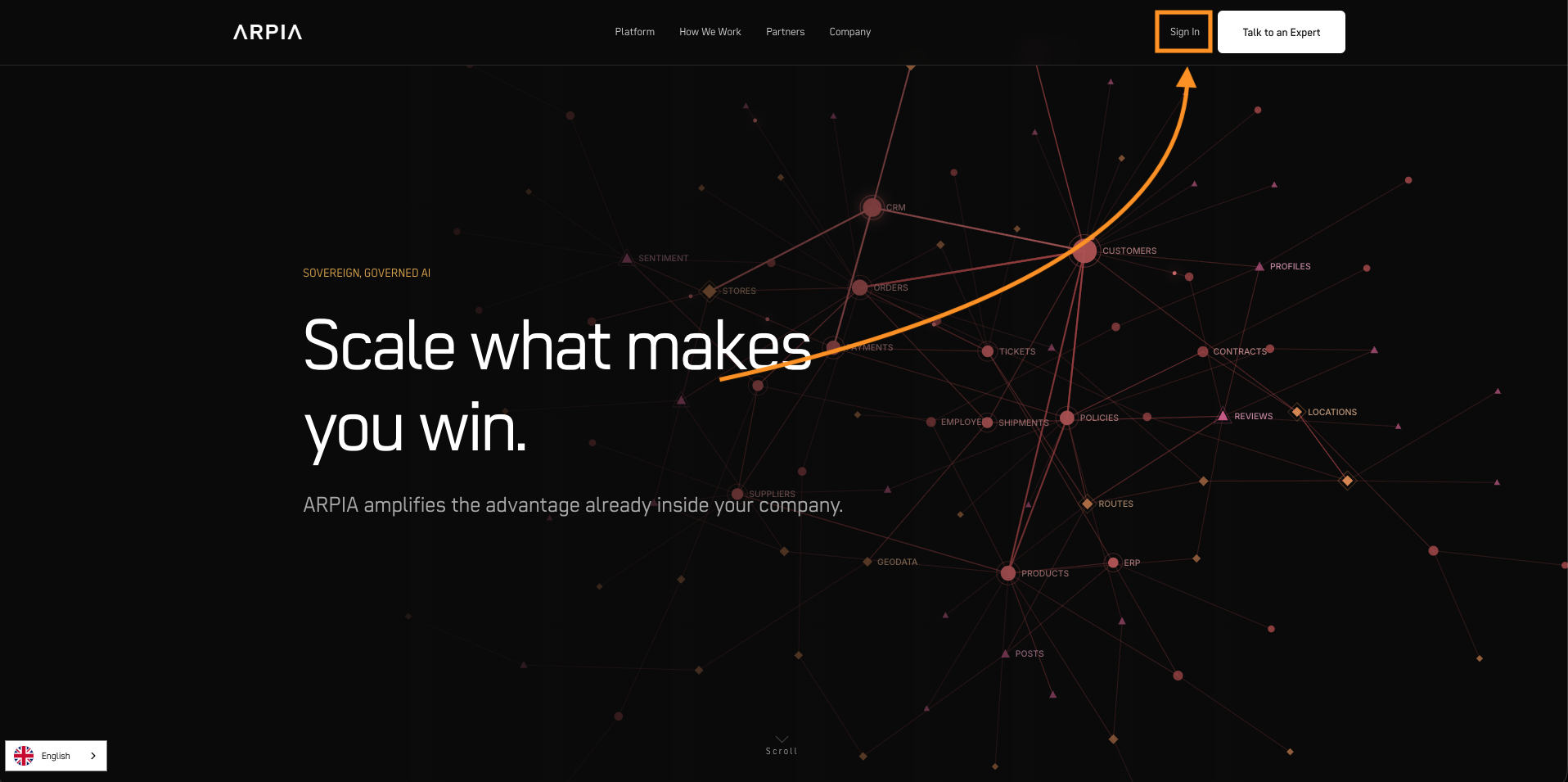
- Go to https://arpia.ai/
- Click "Sign In"
- Select your region from the pop-up:
- United States → platform.arpia.ai
- United Kingdom → uk.platform.arpia.ai
- LATAM → cloud.arpia.ai
Step 2: Receive Your Account Credentials
You'll receive your login credentials via email from the ARPIA team after your access request is approved.
Note: Account activation may require verification or approval from the ARPIA team.
Step 3: Choose Your Login Method
ARPIA supports two authentication methods:
Option A: Single Sign-On (SSO) — Recommended ✅
Sign in instantly using your organization's account.
Supported Providers:
- Google Workspace
- Microsoft 365 / Azure Active Directory
Benefits:
- ✅ Faster access
- ✅ Enhanced security
- ✅ No password to remember
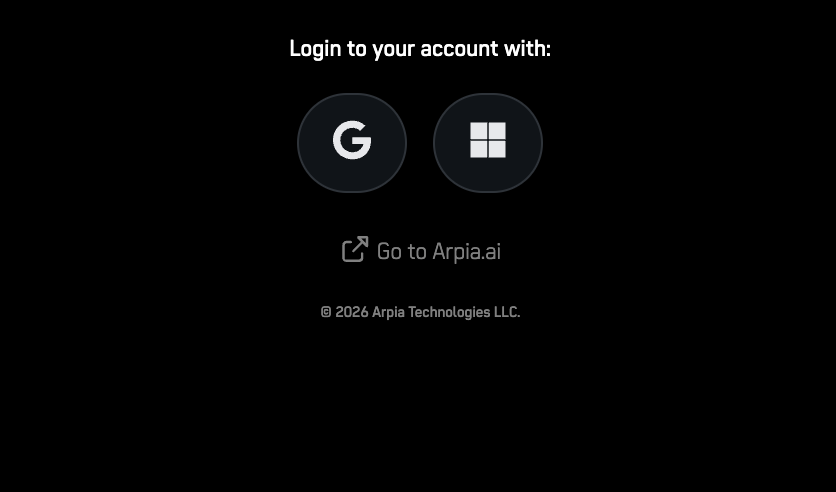
Simply click the Google or Microsoft logo and select your account when prompted.
Important: ARPIA must be authorized in your organization's Whitelist. Contact your IT administrator if you encounter access issues.
Learn More: Complete SSO Setup Guide
Option B: Email and Password
Enter your credentials and click "Log In".
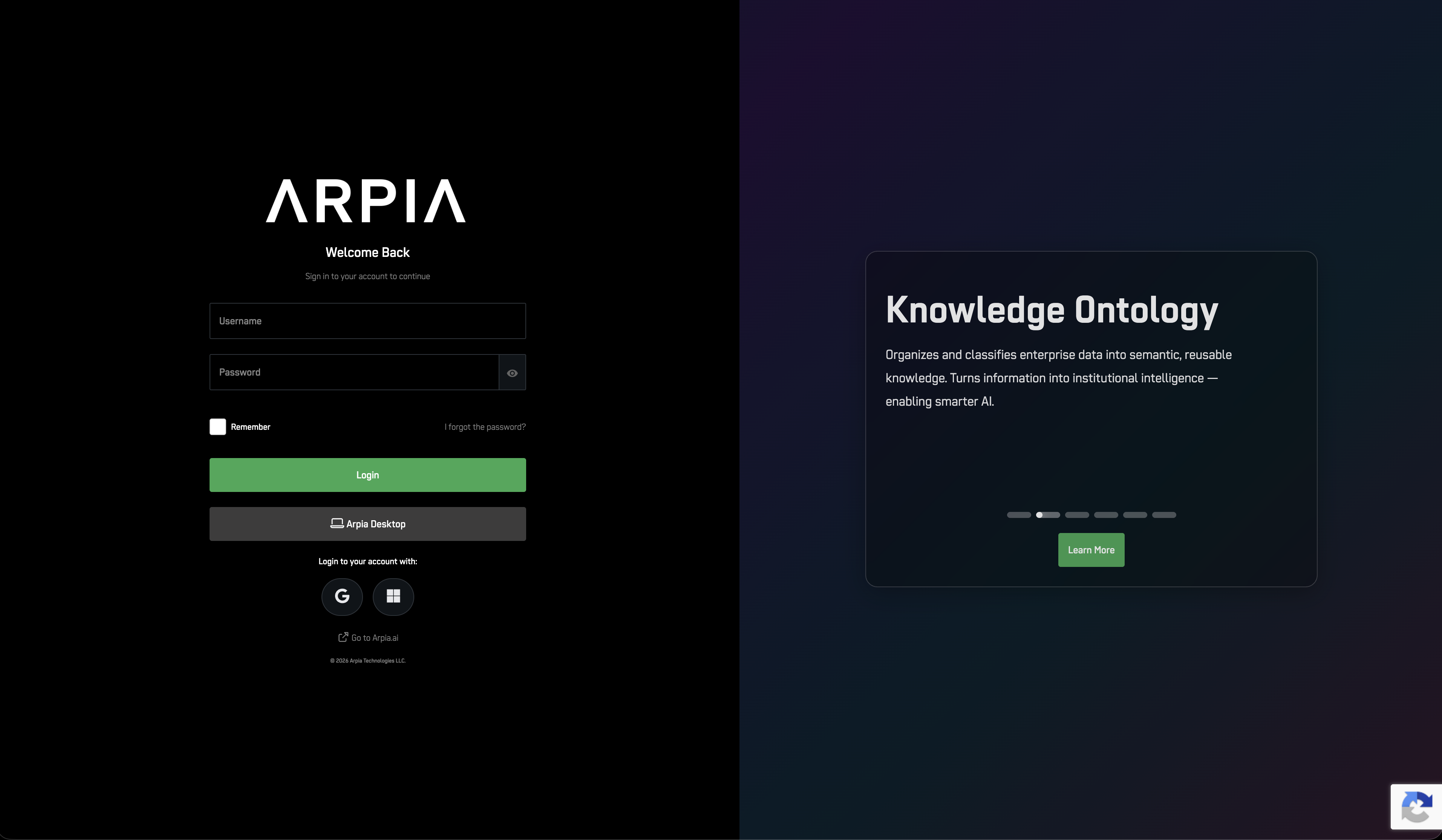
Note: All users proceed to two-factor authentication in Step 4.
Step 4: Complete Two-Factor Authentication (2FA)
Applies to: All users (both SSO and email/password sign-in methods)
Why: Two-factor authentication adds an extra security layer to protect your account, regardless of how you sign in.
- Click "Send Code" to receive a verification code via email
- Enter the code in the provided field
- Click "Validate Code" to complete login
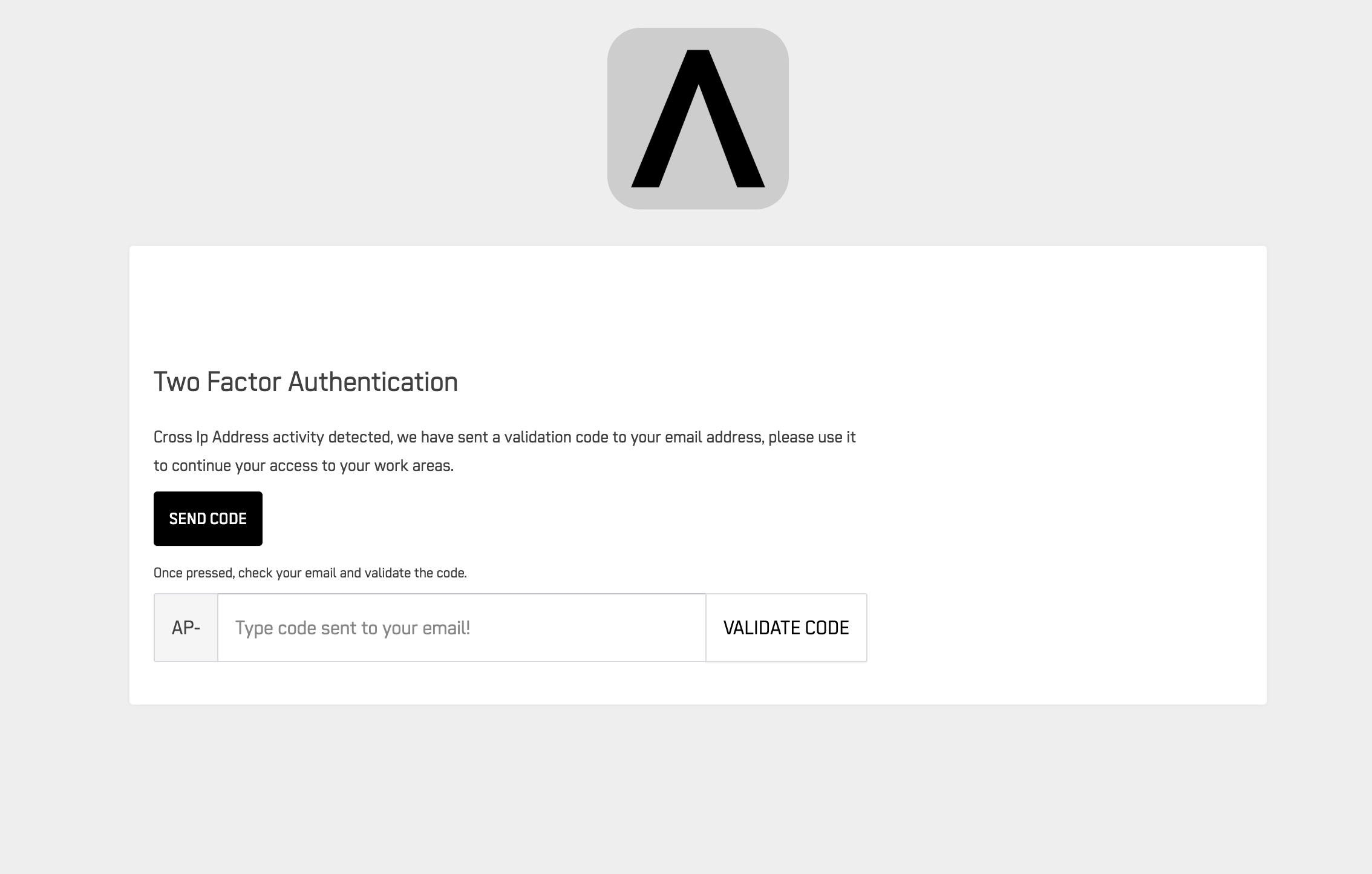
Tip: Codes expire after a few minutes. Request a new one if needed.
Step 5: Welcome to ARPIA!
You're now on the ARPIA main screen. Start exploring the platform's features.
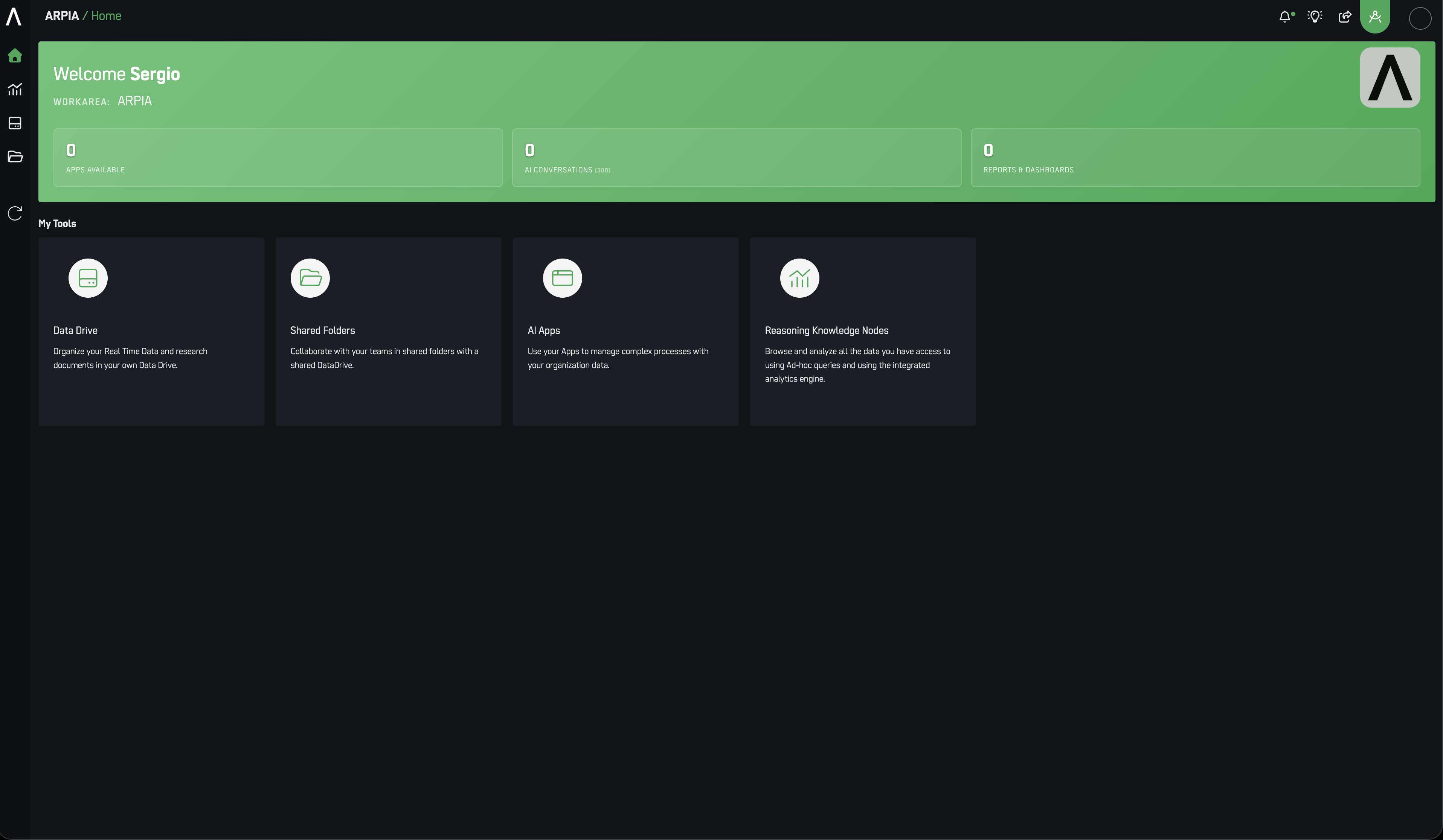
What you can do next:
- Manage users and permissions
- Configure integrations
- Explore analytics and reporting tools
Key Terms
| Term | Definition |
|---|---|
| User | Unique identification to access the platform |
| Password | Secret key protecting your account (optional for SSO users) |
| SSO | Single Sign-On authentication via Google or Microsoft |
| 2FA | Two-Factor Authentication for enhanced security (all users) |
| Security Profile | Permission levels assigned to users |
| ARPIA Administrator | Your organization's ARPIA contact for access and support |
Need Help?
Resources:
Support:
Contact your ARPIA Administrator for technical assistance.
Updated 13 days ago