
Operations
Operations

The Operations section of AI Governance is the central management hub for all AI assets running in your organization. It provides inventory, moderation, prompt, and model governance across its tabs: AI Assistants Inventory, AI Workers Inventory, Moderation, Prompt Library, Model Groups, and Model Inventory.
Who Uses This Section
| Role | How They Use It |
|---|---|
| Platform Administrator | Manage all AI assistants and workers across the organization. Create and assign Model Groups to standardize model usage. |
| CISO / Security Officer | Audit which assistants are deployed, which models they use, and which profiles have access. Enforce model policy via Model Groups. |
| AI Product Owner | Maintain the Prompt Library as a reusable asset. Configure moderation rulesets to control AI output quality. |
| Compliance Officer | Verify that all deployed assistants are bound to approved Model Groups. Review moderation logs for flagged interactions. |
| CTO / Technical Lead | Use Model Groups to centrally control model selection across all assistants without editing each one individually. |
AI Assistants Inventory
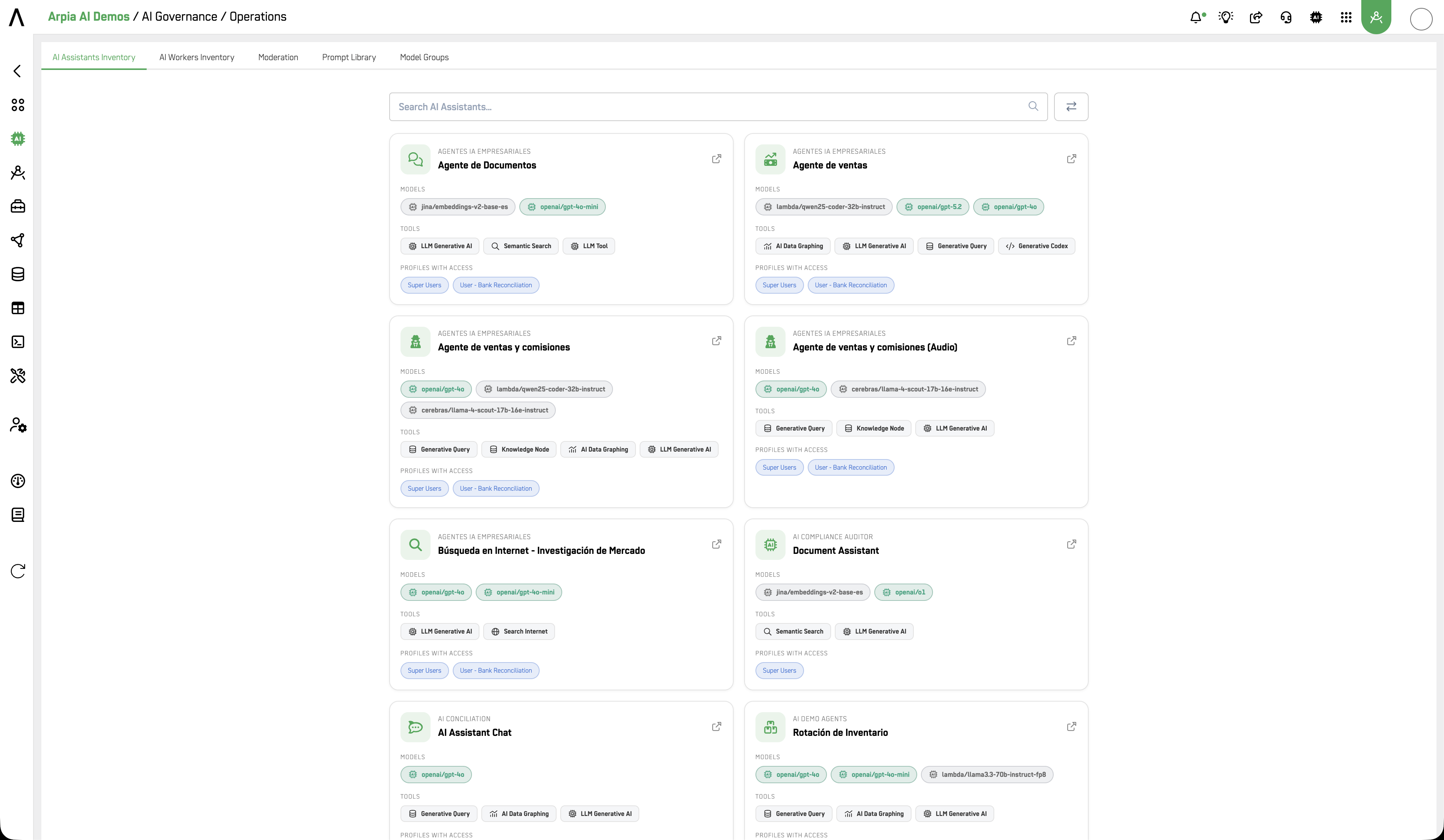
A searchable catalog of all AI Assistants deployed in the workarea.
Each assistant card displays:
- Name and workarea — assistant name and the workspace it belongs to
- Models — the AI models currently bound to the assistant (
Not detectedif no model is configured) - Tools — the tools enabled on the assistant (e.g. LLM Generative AI, AI Data Graphing)
- Profiles with Access — the user profiles that have access to interact with this assistant (e.g. Super Users)
Use the search bar to filter assistants by name. Use the external link icon on each card to open the assistant directly in AI App Studio.
AI Workers Inventory
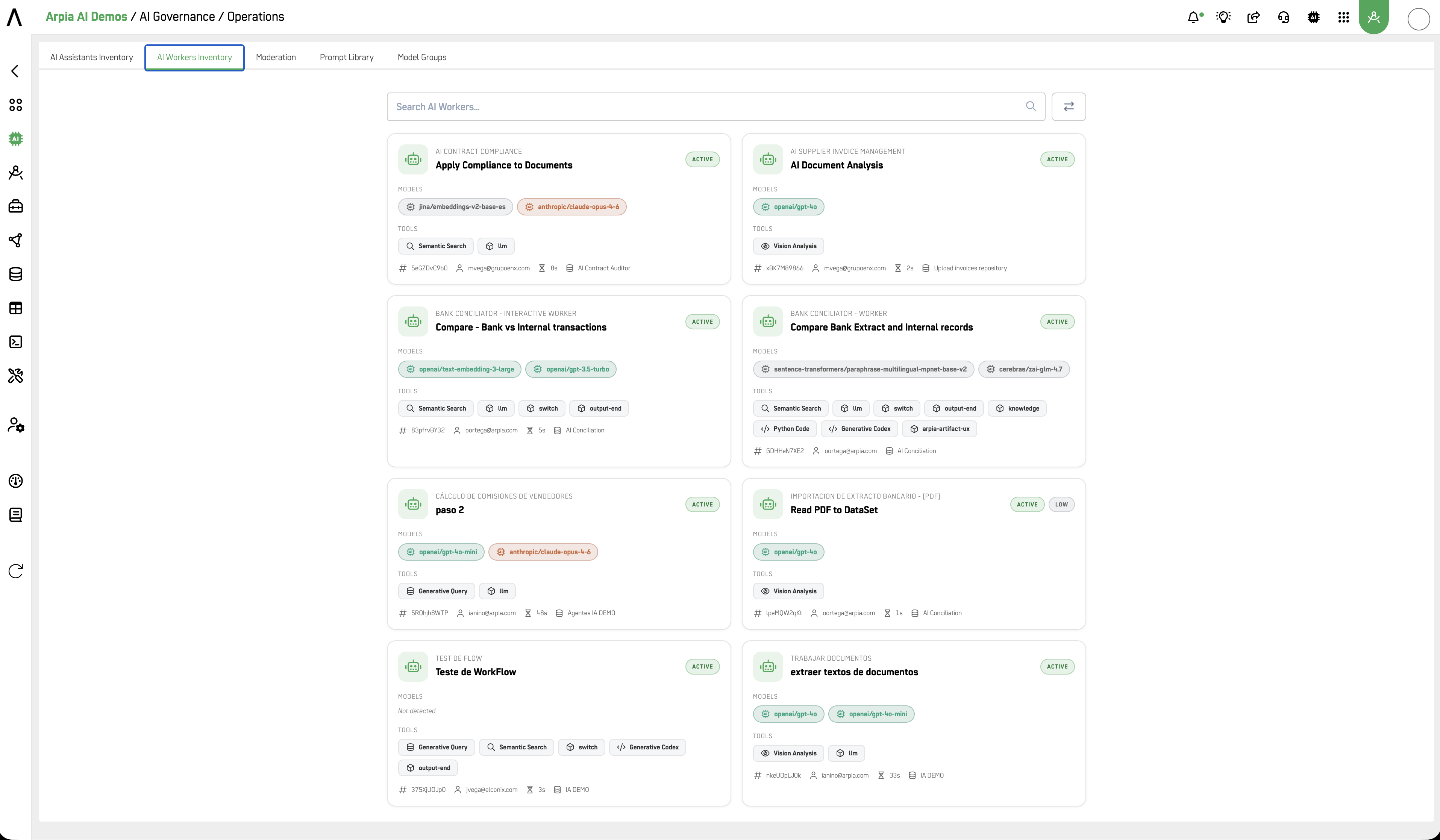
A searchable catalog of all AI Workers deployed in the workarea.
AI Workers are background AI processes that operate outside of direct user interaction. This tab provides the same search and inventory capability as AI Assistants Inventory, scoped to workers.
Moderation
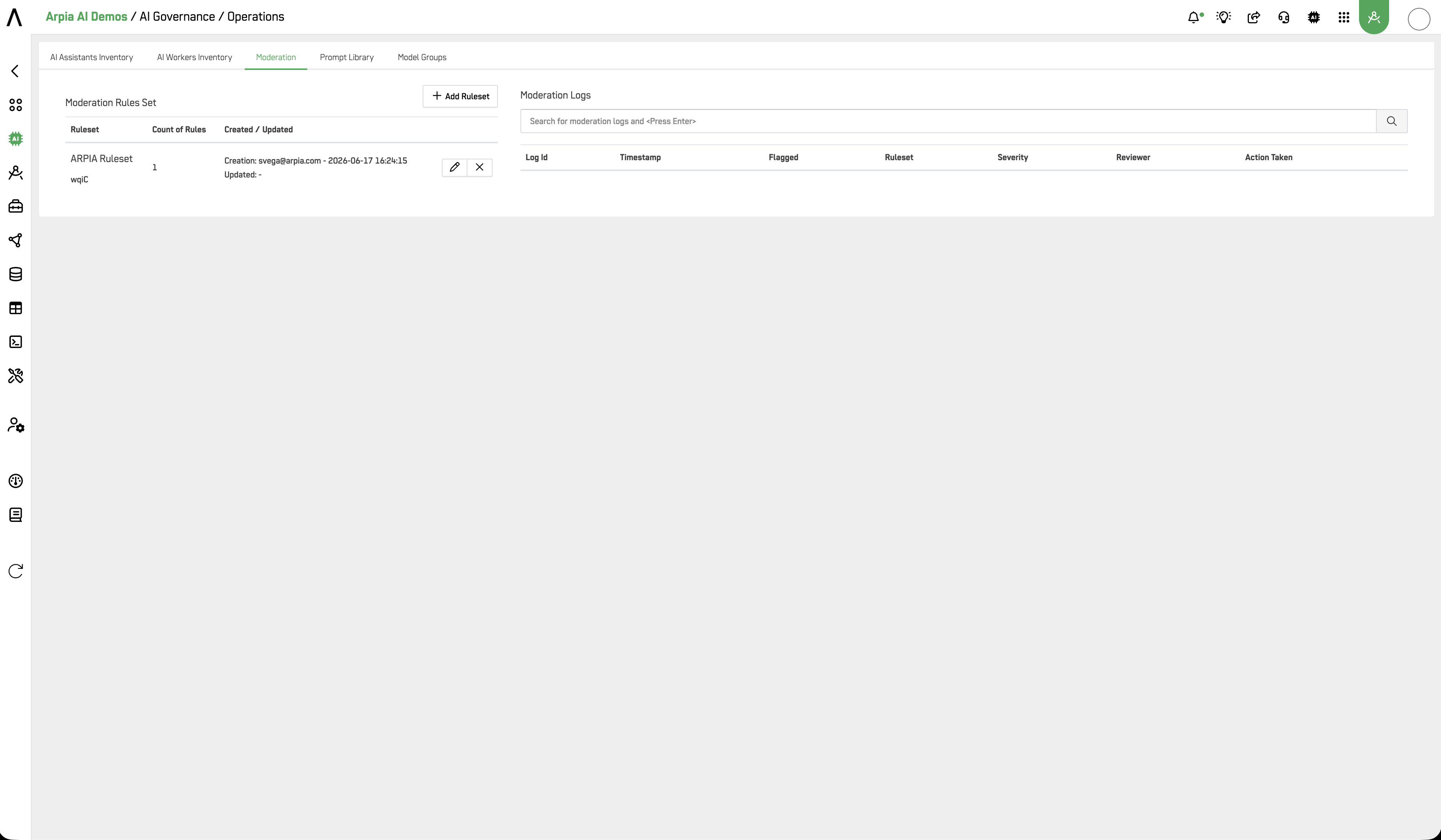
Moderation allows you to define rulesets that govern AI output quality and compliance. It is divided into two panels:
Moderation Rules Set
A table of all configured rulesets showing: Ruleset name, Count of Rules, Created / Updated date. Use + Add Ruleset to create a new ruleset.
Moderation Logs
A searchable log of all moderation events. Columns include: Log Id, Timestamp, Flagged, Ruleset, Severity, Reviewer, Action Taken. Use the search bar to find specific events by keyword.
Creating a Moderation Ruleset
- Click + Add Ruleset.
- Enter a Ruleset Title.
- Set the Status (default: ACTIVE).
- Under Rules, click + Add Rule to add individual rules.
- For each rule, enter the rule context in the Rule Context tab — a free-text field describing what the rule enforces.
- Add as many rules as needed, then click Save.
Each rule is numbered sequentially (#1, #2, …). Rules can be deleted individually using the × button.
Prompt Library
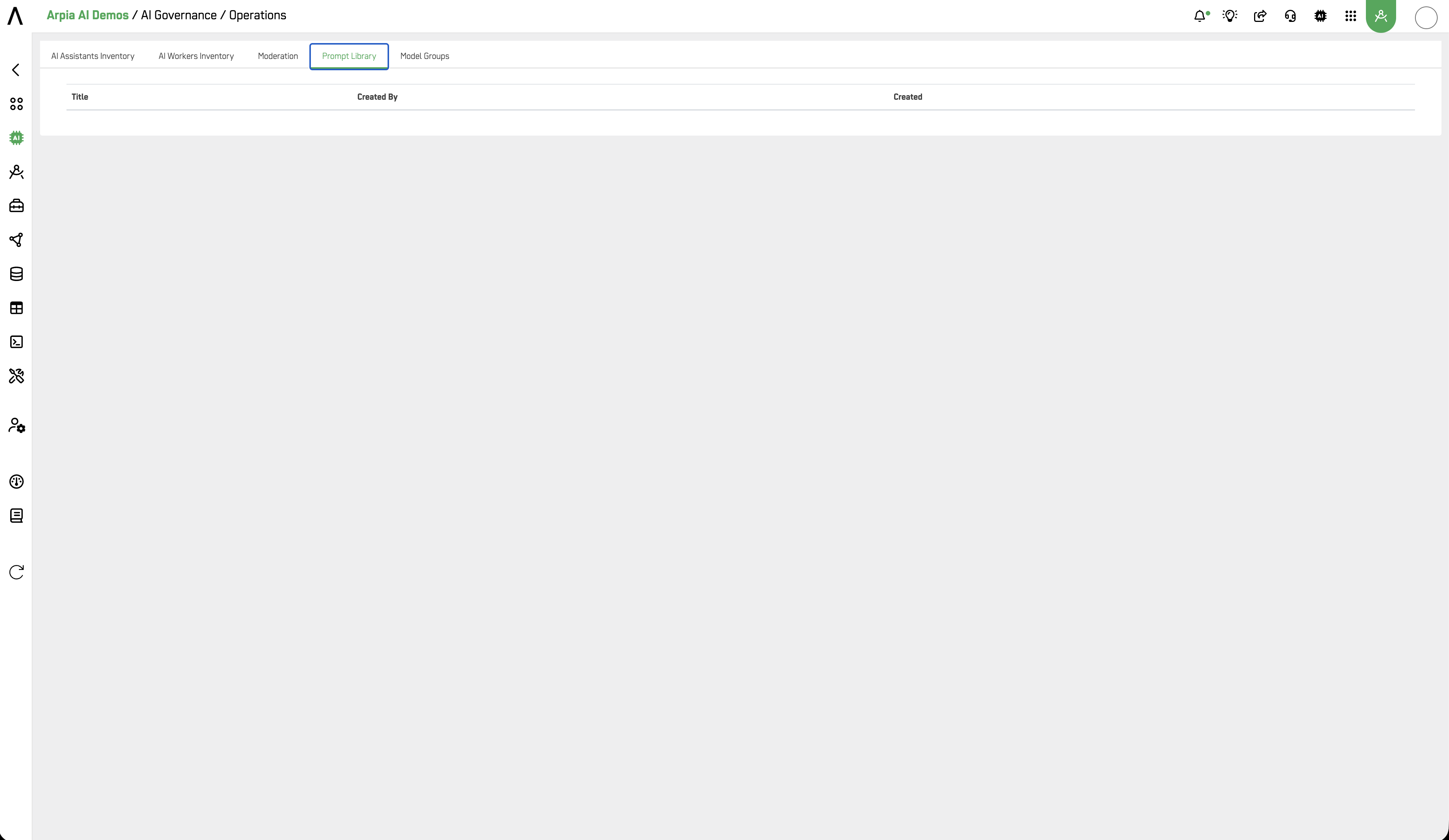
A centralized repository of reusable prompt templates available across the organization.
The table displays: Title, Created By, Created date, and edit/delete actions.
Managing Prompts
To create a prompt: Use the add action (+ button if available) or edit an existing entry.
To edit a prompt:
- Click the pencil icon on the prompt row
- Update the Prompt Title
- Edit the prompt content in the rich text editor — supports Bold, Italic, Strikethrough, Heading, Code, Quote, Bullet list, Numbered list, Link, and formatting controls (undo/redo/clear)
- The editor shows live line and word counts at the bottom
- Click Save
Prompts stored here can be referenced from AI Assistants and other tools across the platform, reducing duplication and ensuring consistency in system-level instructions.
Model Groups
Model Groups are curated sets of AI models that can be bound to any AI tool in the platform. Instead of configuring a single model per assistant or tool, a Model Group defines an ordered list of models — the first model is the primary (default), and the remaining models form the automatic fallback chain.
Curated sets of AI models. Bind a group to an assistant's model selector; the user then picks one model from the group per chat session. Order matters; the first model is the primary / default.
This enables centralized model governance: update the group once and the change propagates to every assistant and tool bound to it — without editing each one individually.
A group also carries its own audience. Beyond which tools it serves, a group can be limited to specific security profiles or specific ORIA seat tiers. That is what turns Model Groups from a convenience into a governance mechanism: the same surface can offer different models to different people, without maintaining a separate configuration per person.
Model Group Table
| Column | Description |
|---|---|
| Group | Group name, purpose badge (CHAT / SQL), description, and short ID |
| Models | The ordered list of models in the group (⭐ marks the primary) |
| Status | ACTIVE or IN-ACTIVE |
| Created | Creator email and creation timestamp |
| Updated | Last update timestamp |
Use the search bar to filter groups by name. Use the pencil icon to edit a group or the × icon to delete it.
Creating a Model Group
Click the + button in the top-right corner of the Model Groups tab.
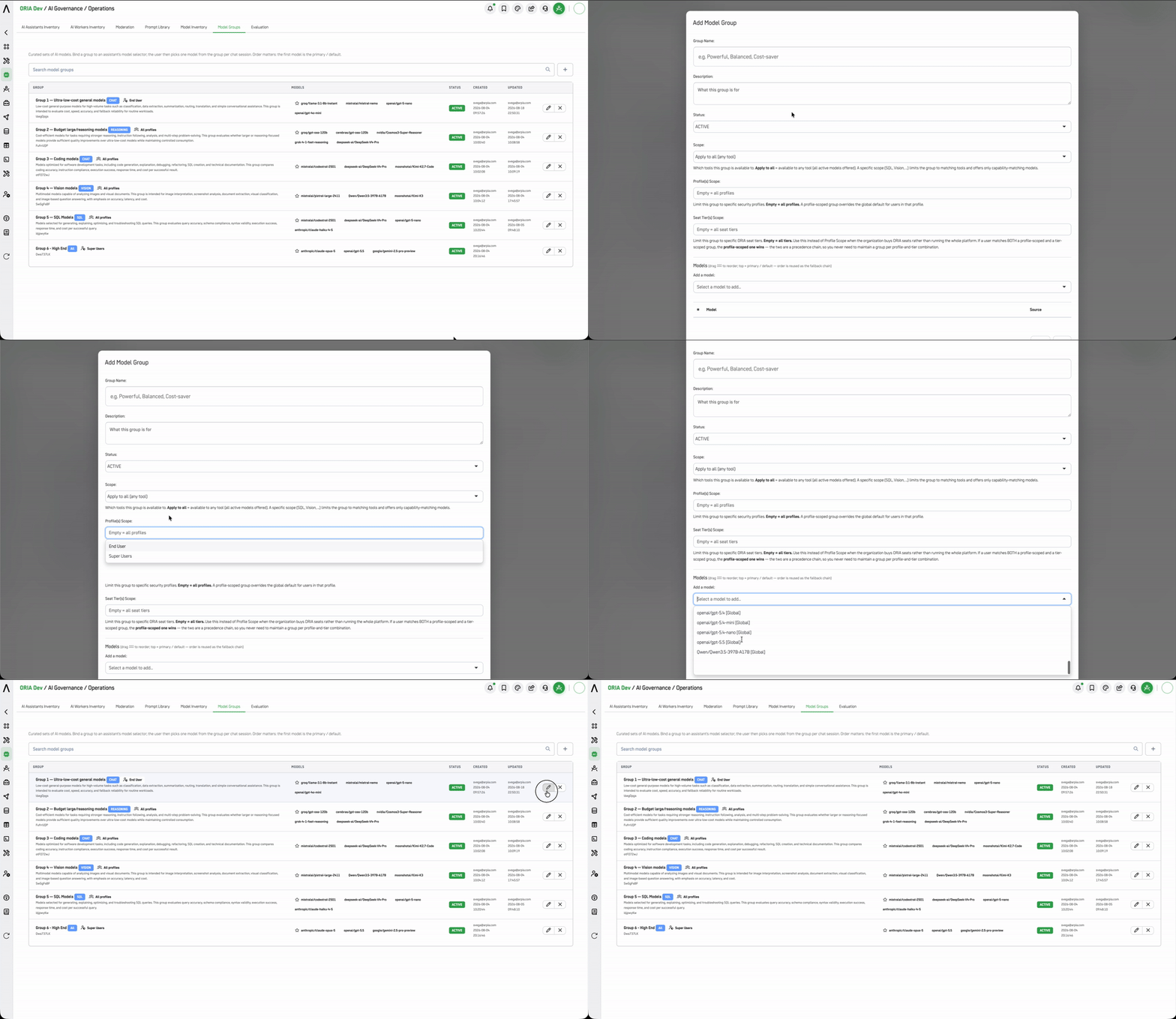
| Field | Description |
|---|---|
| Group Name | A descriptive name for the group (e.g. Powerful, Balanced, Cost-saver) |
| Description | What this group is for — shown as a subtitle in the table and in tool selectors |
| Status | ACTIVE (available for binding) or IN-ACTIVE (hidden from selectors) |
| Scope | Which tools this group is available to. Apply to all (any tool) offers all active models. A specific scope limits the group to matching tools and offers only capability-matching models |
| Profile(s) Scope | Limit the group to specific security profiles. Empty = all profiles. A profile-scoped group overrides the global default for users in that profile |
| Seat Tier(s) Scope | Limit the group to specific ORIA seat tiers: Oria Basic, Oria Pro, Arpia Builder. Empty = all tiers. Use this instead of Profile Scope when the organization buys ORIA seats rather than running the whole platform |
| Models | Select models one at a time using the dropdown. Drag rows using the ⠿ handle to reorder — the top model is the primary / default, and the order is reused as the fallback chain |
Click Save when done.
Scope Reference
Scope controls which tools may use the group, and filters the model list to models with the matching capability.
| Scope | Offers |
|---|---|
| Apply to all (any tool) | Available to any tool; all active models offered |
| Chat / general | Conversational tools (LLM Generative AI, AI Moderator, Search Internet, etc.) |
| SQL (gen-query) | Query generation tools (Generative Query — GenerativeQ selector) |
| Vision | Tools that accept image input; only vision-capable models offered |
| Reasoning | Tools using extended reasoning; only reasoning-capable models offered |
| Embedding (semantic) | Semantic search and embedding generation |
A scoped group inherits the capability flags from Model Inventory. Selecting
Visionoffers only models flagged vision-capable. If a model's flags are wrong, it will either be missing from a group where it belongs or offered in one where it will fail at runtime. Verify capability flags before relying on scoped groups.
Audience Scoping and Resolution Order
A group can be limited by security profile, by ORIA seat tier, both, or neither. When a user could match more than one group, the platform resolves in this order:
| Precedence | Match | Result |
|---|---|---|
| 1 (highest) | Profile-scoped group | Wins — overrides the global default and any tier match |
| 2 | Seat-tier-scoped group | Applies when no profile-scoped group matches |
| 3 (lowest) | Global default | The group bound to the surface in Configuration |
Profile and tier are a precedence chain, not a matrix. Because the profile-scoped group wins outright, you never need to maintain a group for every profile-and-tier combination — scope by tier for the broad case, and add profile-scoped groups only where a specific profile needs to differ.
When to use which:
| Situation | Use |
|---|---|
| The organization runs the whole platform and governs by security role | Profile(s) Scope |
| The organization buys ORIA seats rather than the full platform | Seat Tier(s) Scope |
| A specific role must differ from what its tier would otherwise get | Both — the profile-scoped group takes precedence |
Seat tiers are a commercial boundary, not just an administrative one. Scoping a group to
Oria Basic,Oria Pro, orArpia Builderties model availability to the seat plan. See Pricing @ Arpia Platform for what each tier includes.Model availability is resolved per user, not per work-area. Two people on the same surface can be offered different models — by profile, by seat tier, or both. When troubleshooting "why can't I select model X," check the user's profile and tier before checking the surface binding in Configuration.
How Fallback Works
When a tool is bound to a Model Group and the primary model fails or is unavailable, the platform walks the group in priority order — attempting each model in sequence until one succeeds. The single model configured above the group selector serves as the final fallback if all group members are exhausted.
This means a single Model Group configuration provides both user-selectable model choice and automatic resilience without any additional setup.
Reordering a group changes production behavior. The order is both the user-facing default and the fallback chain. Dragging a model to the top makes it the default for every tool and every user bound to that group. Treat reordering as a change-managed action.
Binding a Model Group
Model Groups are bound in two places:
To an individual tool:
- Open the tool in AI App Studio or Reasoning Flows
- In the Model Configuration section, change the Model selector from Single Model to Model Group
- A second dropdown appears — search or select the group
- Save the assistant or flow
To an Oria surface (work-area-wide):
Use Assistant Model Groups in AI Governance → Configuration to bind a group to the ORIA Reasoner or to Oria (Workshop & SPA). These bindings are required — a surface left unset is disabled.
Changes made to a group in Operations propagate automatically to everything bound to it.
Model Inventory
Custom and work-area-specific models are registered and managed here, alongside ARPIA's own model catalog. Registered models become available in model selectors across the platform under the workarea/ namespace, and are the source of the capability flags that Model Group scoping relies on.
[CONFIRMAR: full Model Inventory tab reference — fields, table columns, and whether it replaces the former Model Registry panel on the Configuration page entirely]
Governance Notes
Model Groups are the enforcement point for model policy. A group bound to a surface or tool is an allowlist: users cannot reach models outside it. This is where MODEL_ALLOWLIST policies defined in Policy Center are actually enforced. Keep the two in sync, and treat group membership changes as policy changes.
Editing a group is a broad-blast change. Group edits propagate silently to every bound tool, assistant, and surface. Before adding, removing, or reordering models, check what is bound to the group.
Audience scoping creates per-user variation that is invisible in the group table. The table shows a group's models and status, not which users will actually receive it. When auditing model access, review Profile and Seat Tier scopes across all groups together, not group by group.
IN-ACTIVE hides a group from selectors. It does not warn you if a surface or tool is currently bound to it. Confirm nothing depends on a group before deactivating it.
Related
- AI Governance — AI Governance section overview
- Configuration — Assistant Model Groups and work-area AI settings
- Overview — aggregate metrics and provider health dashboard
- Policy Center — MODEL_ALLOWLIST policy type
- Aerie — AI Agents — real-time AI operations view
- Pricing @ Arpia Platform — ORIA seat tiers
Updated 2 months ago