
Configuration
Configuration
The Configuration section of AI Governance provides workarea-level controls for AI behavior and model registration. It is divided into two components: Global AI Configuration and Model Registry.
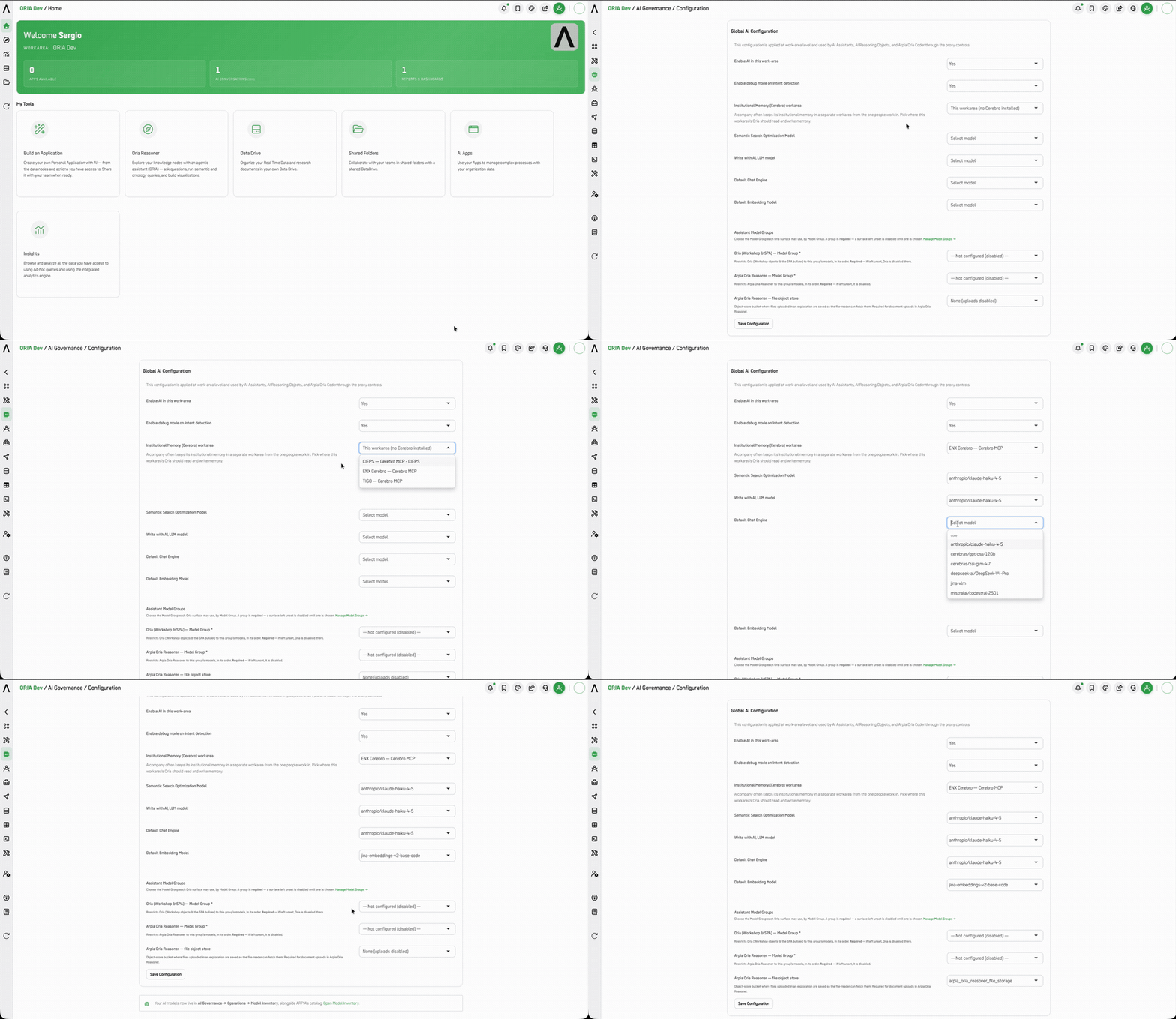
This configuration is applied at work-area level and used by AI Assistants, AI Reasoning Objects, and ARPIA AI Codex through the proxy controls.
Who Uses This Section
| Role | How They Use It |
|---|---|
| Platform Administrator | Enable or disable AI across the workarea. Set default models for chat, embedding, and semantic search. Register custom models via the Model Registry. |
| CTO / Technical Lead | Define the default model stack for the organization. Restrict Codex model usage to an approved Model Group. Register workarea-specific model endpoints. |
| CISO / Security Officer | Use ARPIA Codex — allowed Model Group to enforce model policy at the workarea level. Ensure only approved models are available to Codex jobs. |
| AI Product Owner | Enable debug mode on Intent detection during assistant development to diagnose routing issues. |
Global AI Configuration
The Global AI Configuration panel controls workarea-wide AI behavior settings. Changes here affect all AI Assistants, AI Reasoning Objects, and ARPIA AI Codex jobs running in the workarea.
Click Save Configuration to apply any changes.
Settings
Enable AI in this work-area
Master switch for all AI functionality in the workarea.
| Value | Effect |
|---|---|
| Yes | AI is enabled — all assistants, workers, and Codex jobs can execute |
| No | AI is disabled workarea-wide — all AI execution is blocked |
Setting this to No immediately disables all AI activity across the workarea, including production assistants.
Enable debug mode on Intent detection
When enabled, intent detection routing decisions are logged and surfaced in the AI App Studio preview pane. Use during assistant development to diagnose why a specific tool is or isn't being selected.
| Value | Effect |
|---|---|
| Yes | Intent detection debug logs are active |
| No | Debug mode off (default for production) |
Semantic Search Optimization Model
The model used to optimize semantic search queries across knowledge nodes. Select from the available model catalog.
Write with AI, LLM model
The default LLM used for AI-assisted writing features across the platform.
Default Chat Engine
The default model used for conversational AI interactions when no specific model is configured at the assistant level.
Default Embedding Model
The model used to generate vector embeddings for semantic search and knowledge retrieval. Available options include:
jina/embeddings-v2-base-codejina/embeddings-v2-base-esjina/embeddings-v3jina/jina-embeddings-v5-text-smallopenai/text-embedding-3-largeopenai/text-embedding-3-smallQwen/Qwen3-Embedding-8B
ARPIA Codex — allowed Model Group
Restricts the Codex model picker to the models in a specific Model Group, in priority order. Leave as All models (no restriction) to allow every Codex-enabled model.
This is a direct model governance control — binding a Model Group here ensures Codex jobs can only use approved models, regardless of what individual users attempt to select. This setting is relevant to change management and compliance documentation under LQP6K and ISO 42001.
Model Registry
The Model Registry allows administrators to register custom or workarea-specific LLM models that are not part of the default ARPIA model catalog. Registered models become available in model selectors across the platform under the workarea/ namespace.
The table displays: Model Id, Model, Client, Status.
Adding a Model
Click + Add Model to open the Add LLM Model form.
| Field | Description |
|---|---|
| Model Name | The model identifier in workarea/provider/modelname format. The workarea/ prefix is fixed — type the provider and model name after it (e.g. my-provider/my-model) |
| Client Type | The API client protocol the model uses: OpenAI Client Compatible or Anthropic Client Compatible |
| Model API URL | The base API endpoint for the model (e.g. https://api.openai.com/v1 for OpenAI compatible models) |
| Model API Token | The authentication token for the model's API endpoint |
| Supports Text To SQL | Whether this model supports Text-to-SQL generation: Yes / No (default). Determines availability in SQL-scoped tool selectors |
| Supports Vision | Whether this model supports image/vision input: Yes / No (default). Determines availability in vision-capable tool selectors |
| Supports Reasoning | Whether this model supports extended reasoning (chain-of-thought): Yes / No (default) |
| Status | Active — model is available in selectors · Inactive — model is hidden from selectors |
Click Save to register the model. It will appear in the Model Registry table and become available in model selectors across the platform under the workarea/ namespace.
Governance Notes
ARPIA Codex — allowed Model Group is a governance control. When set to a specific Model Group, it acts as a model allowlist for all Codex jobs in the workarea. This is the operational enforcement point for model governance policies defined in Policy Center (MODEL_ALLOWLIST type). Both should be kept in sync.
Model Registry entries inherit capability flags. The Supports Text To SQL, Supports Vision, and Supports Reasoning flags directly control which tool selectors a model appears in. Incorrectly setting these flags (e.g. marking a non-vision model as vision-capable) can cause runtime errors when the model is used in vision contexts. Always verify capability support with the provider before registering.
Default models apply workarea-wide as fallbacks. If an assistant or tool has no model explicitly configured, it falls back to the Default Chat Engine. Ensure this default is always set to a production-approved model.
Related
- AI Governance — AI Governance section overview
- Operations — Model Groups and AI Assistants inventory
- Policy Center — MODEL_ALLOWLIST policy type
- Logs & Usage — model usage tracking and AVU cost by model
Updated 2 months ago