
How-To Guide for "Map Geo Point Field" and "Map Select Geo Point Field"
Overview
Map Geo Point Field is useful when we need the data form to capture the specific location of the point where it is currently located. On the other hand, Map Select Geo Point Field allows us to choose an exact location by interacting with a map.
Key Features
- Location Precision: Both fields allow precise location selection, either automatically (Map Geo Point Field) or manually (Map Select Geo Point Field).
- Interactive Map Integration: Both fields integrate with interactive maps, enabling users to either get their location or select a point.
- Latitude and Longitude Storage: Locations are stored as latitude and longitude coordinates for accurate future reference.
Steps to Configure the Fields
Prerequisite — MapBox token
Maps render using the MapBox engine. An Administrator sets the MapBox API Token once in Enrichment Sources (the MapBox Integration card); it applies to all geo fields. Leave it blank to disable. Without it, the map won't display.
Step 1: Open the Field Dialog
- Open your Data Form configuration (the data object whose fields you are editing).
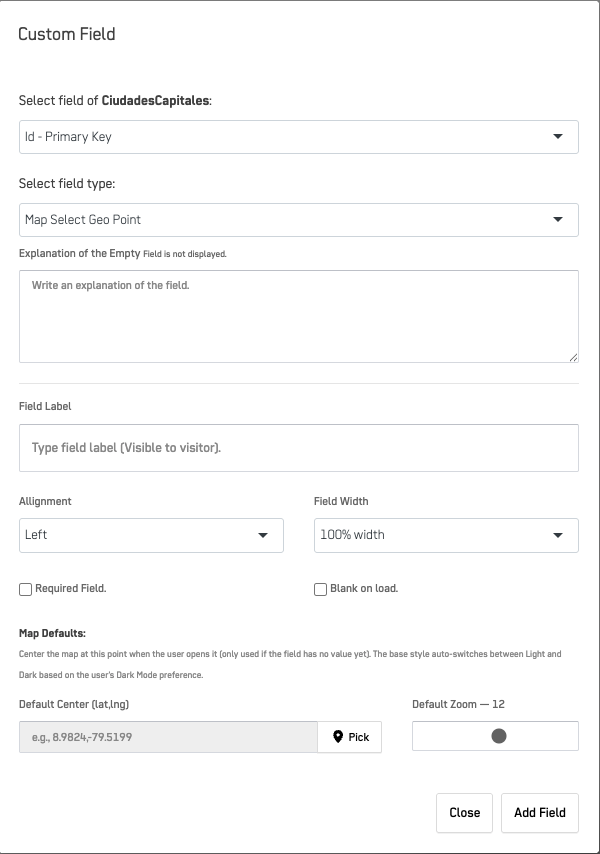
- Add a new field or edit an existing one — the Custom Field dialog opens.
Step 2: Select the Field and Type
- Select field of [object]: choose the column of the data object this field maps to (e.g.,
Id - Primary Key). - Select field type: choose Map Geo Point (captures the user's current location automatically) or Map Select Geo Point (lets the user pick a point on a map).
Step 3: Configure Field Details
- Explanation of the Empty Field: optional text shown to guide the user when the field is empty (e.g.,
"Select the location."or"Please allow access to your current location"). - Field Label: the label visible to the visitor (e.g.,
"User Location"). - Alignment: Left (default), Center, or Right.
- Field Width: define the width of the field (e.g., 100% width for full-row display).
Step 4: Additional Options
- Required Field: check this box if the field must always contain a value.
- Blank on load: enable this if the field should remain empty until data is loaded or generated.
Step 5: Map Defaults
- Default Center (lat,lng): where the map centers when the user opens it — only used if the field has no value yet. Type coordinates (e.g.,
8.9824,-79.5199) or click Pick to choose the point on a map. - Default Zoom: the initial zoom level (e.g.,
12).
The base map style auto-switches between Light and Dark based on the user's Dark Mode preference.
Step 6: Save and Test
- Click Add Field to save the field.
- Test the form by ensuring:
- You grant access to your current location when using a Map Geo Point field.
- You select a location manually when using a Map Select Geo Point field.
Troubleshooting
| issue | Solution |
|---|---|
| message "User denied the request for Geolocation." | Ensure the user grants location permission. |
| The map remains blank. | Confirm the MapBox API Token is set in Enrichment Sources. |
Example Configuration
Scenario: Capture the user’s current location using a Map Geo Point Field.
- Field Details:
- Field:
user_location(column of the data object) - Field Label: "Current Location"
- Field Type: Map Geo Point
- Field:
Example Output
40.7128, -74.0060
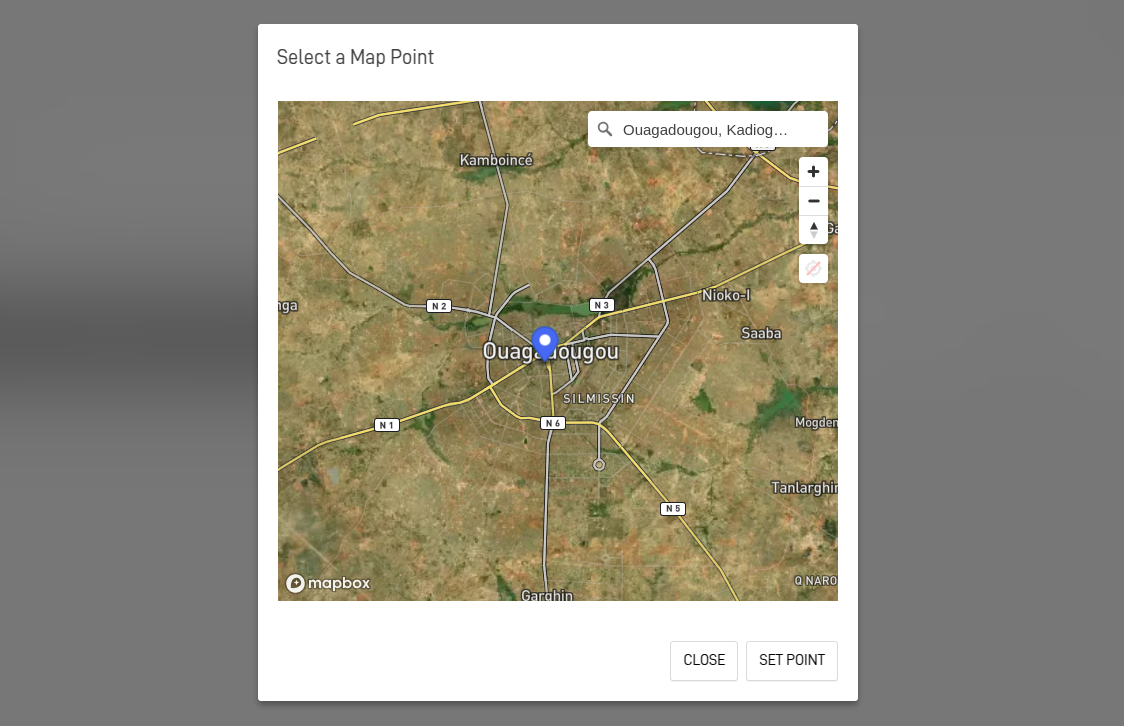
Scenario: Allow users to manually select a location on a map using a Map Select Geo Point Field.
- Field Details:
- Field:
selected_location(column of the data object) - Field Label: "Selected Location"
- Field Type: Map Select Geo Point
- Field:
- User Selection:
Example Output :
12.363142,-1.529773
Best Practices
-
Bind to a Clear Field:
Map the geo field to a meaningful column of the data object (e.g.,user_location,destination_location). -
Offer Descriptive Labels:
Label the fields with clear and user-friendly text to guide users, such as "Current Location" or "Select Your Location". -
Set a Sensible Map Default:
Use Default Center and Default Zoom so the map opens near the expected area when the field is empty. -
Utilize the Correct Field Type:
- Use Map Geo Point when capturing the user’s current location automatically.
- Use Map Select Geo Point when allowing the user to manually select a location on the map.
Summary
The Map Geo Point Field and Map Select Geo Point Field provide powerful options for collecting geographic data in your forms. They provide flexibility for use cases where location data is required, whether automatically gathering the user's position or letting the user choose a specific spot on the map.
Updated 4 months ago