
How-To Guide for "Create Multiple Options"
Overview
The "Create Multiple Options" field lets users add their own custom choices when predefined options aren't enough. Users add as many entries as they need, in real time.
Key Features
- User-generated entries: Users add as many options as they need.
- Dynamic input: Each option is added one at a time.
- Real-time updates: New options appear instantly as they're added.
Steps to Configure the Field
Step 1: Select the field type
- Open your Data Form configuration.
- Add a new field or edit an existing one.
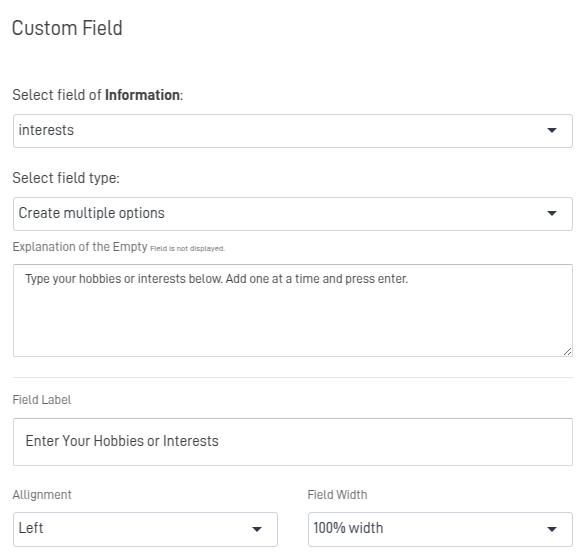
- In the Field Type dropdown, select Create Multiple Options.
Step 2: Configure field details
- Field Name: A unique name (e.g.
interests). - Field Label: The label shown in the form (e.g. "Enter your hobbies or interests").
- Explanation of the Empty Field (optional): Guidance for users. Example: "Type a hobby or interest and press Enter. Add one at a time."
- Alignment: Left (default), center, or right.
- Field Width: e.g. 100% for a full-row layout.
Step 3: Configure advanced options
- Required Field: Check this if users must add at least one option.
- Blank on Load: Keeps the field empty until the user adds a value.
Step 4: Save and test
- Click SAVE or EDIT FIELD.
- Test the form:
- Confirm users can add as many options as they want.
- Confirm entries are saved as JSON in the destination table.
Example Configuration
Scenario: A user enters their hobbies or interests.
- Field Name:
interests - Field Label: "Enter your hobbies or interests"
- Field Type: Create Multiple Options
- Options added by the user:
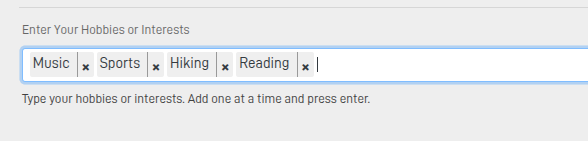
Example JSON output:
["Music","Sports","Hiking","Reading"]
Best Practices
- Encourage meaningful entries: Guide users toward relevant, concise values to keep data quality high.
- Give context: A clear label and description tell users what's expected.
- Prompt a review: Ask users to check their entries before submitting to avoid accidental ones.
Summary
The "Create Multiple Options" field lets users add custom entries with no predefined limits. It's ideal when standard options aren't enough, and it saves diverse input as JSON — supporting a more personalized experience.
Updated 5 months ago
Did this page help you?