
Institutional Memory (Cerebro) in ORIA Reasoner
Institutional Memory (Cerebro) lets Oria answer from your organization's recorded decisions, rules, and procedures — not just from the data in your session or the model's general knowledge.
It is enabled by default in every session, scoped to every domain your profile can access. You do not need to turn it on. What you may want to do is narrow it, or turn it off entirely for specific tasks.
Overview
| UI label | Institutional Memory (the underlying layer is Cerebro) |
| Available in | ORIA Reasoner sessions — read and write |
| Default state | On. Every session, unless you turn it off in the panel |
| What it stores | Decisions, rules, procedures, customer and product knowledge — with attribution and traceability |
Controls in the Right Panel (In-Session)
During any Reasoner session, you can control how Cerebro behaves using the right-hand panel.
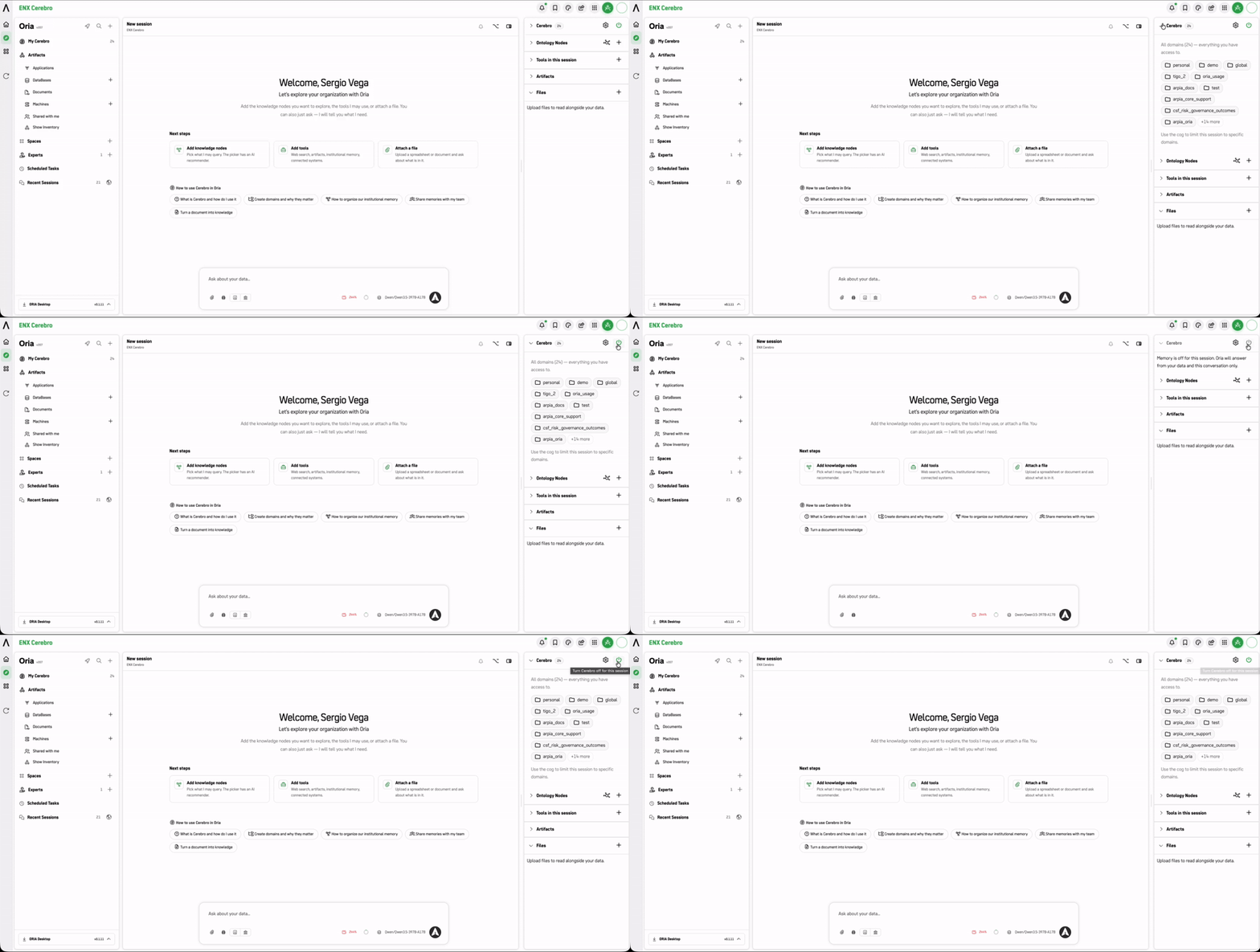
Two controls sit in the Institutional Memory panel header:
| Control | What it does |
|---|---|
| ⏻ (power) | Quick on/off for institutional memory in this session |
| ⚙ (cog) | Opens the full Institutional Memory Settings dialog |
Cerebro Settings
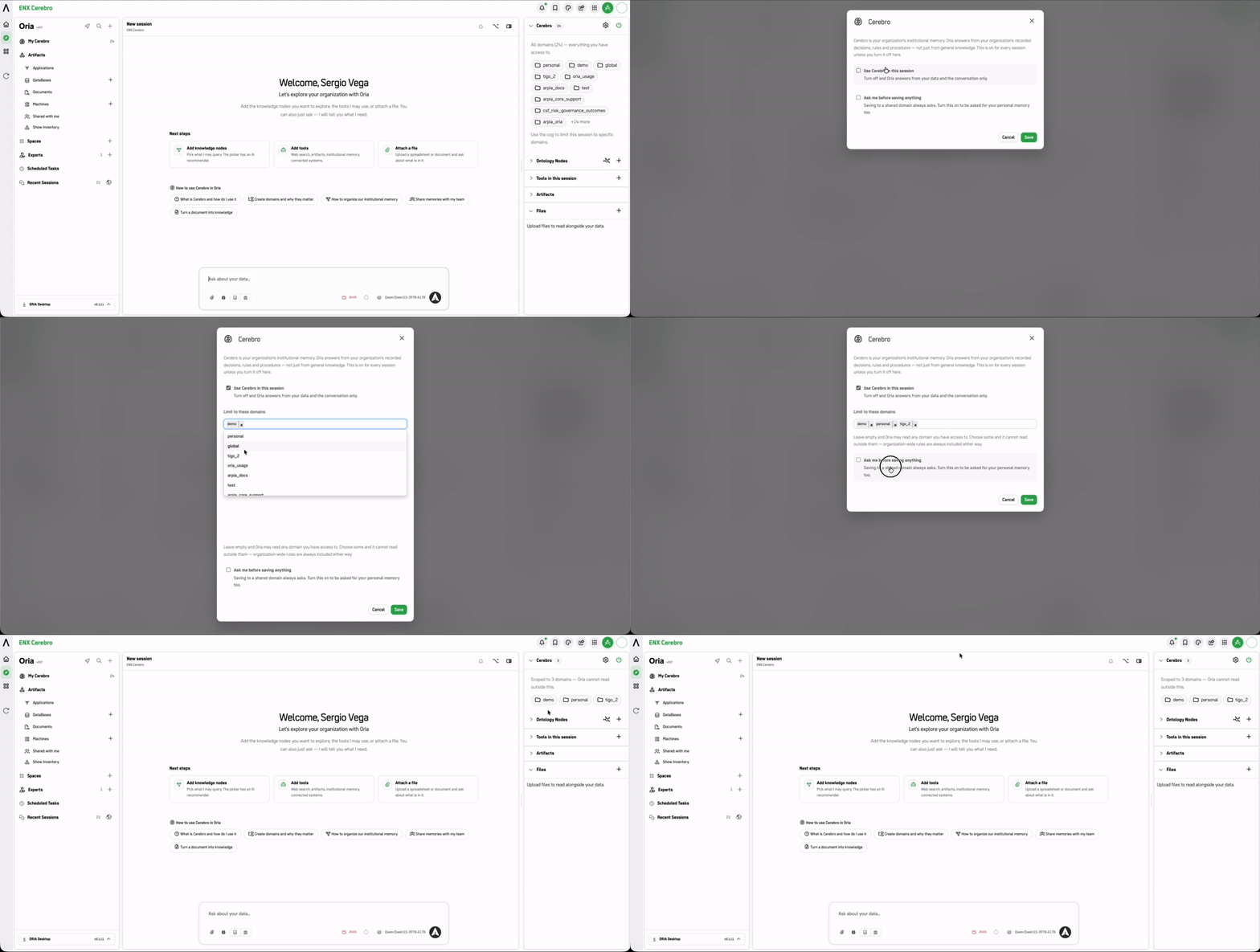
Use institutional memory in this session
- Use Cerebro in this session: Checked by default. Turn off to restrict Oria to your session data and conversation only.
- Limit to these domains: Leave it empty and Oria may read any domain you have access to. Choose specific domains to restrict its reading scope. (Note: Organization-wide rules are always included).
- Ask me before saving anything: Unchecked by default. Saving to a shared domain always asks for confirmation. Checking this box means Oria will also prompt you before saving to your personal memory.
Saving Memories from Chat
Cerebro writes when you say "save," "remember," or "persist." Finishing a line of analysis does not by itself write a memory.
- Saving to a shared domain will always ask for your confirmation before anything is recorded.
- Saving to your personal memory will happen instantly without asking for confirmation (unless you checked the "Ask me before saving" setting in the panel).
- Save exactly what you see. If Oria shows you draft text, make sure the saved title and content are identical to what you approved. Do not re-summarize at save time.
Using the Message UI Buttons (After a response)
Once Oria provides a response, you can save it directly using the action buttons located just below the message block:
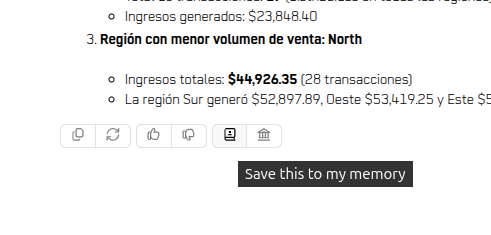
- Save this to my memory (Book Icon): Saves the response directly to your personal domain. (This does not prompt for confirmation unless you enabled it in settings).
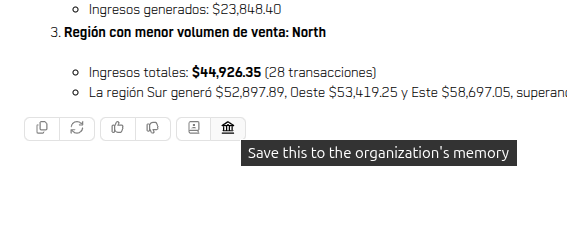
- Save this to the organization's memory (Institution Icon): Triggers a prompt to save the response to a shared organizational domain. This always asks for confirmation.
Next Steps
Advanced Guide: Cerebro Configuration, Ingestion & Governance.
Updated 21 days ago